What it is
An app for engineering design and drawing revision control at a homebuilder with several projects in the portfolio.
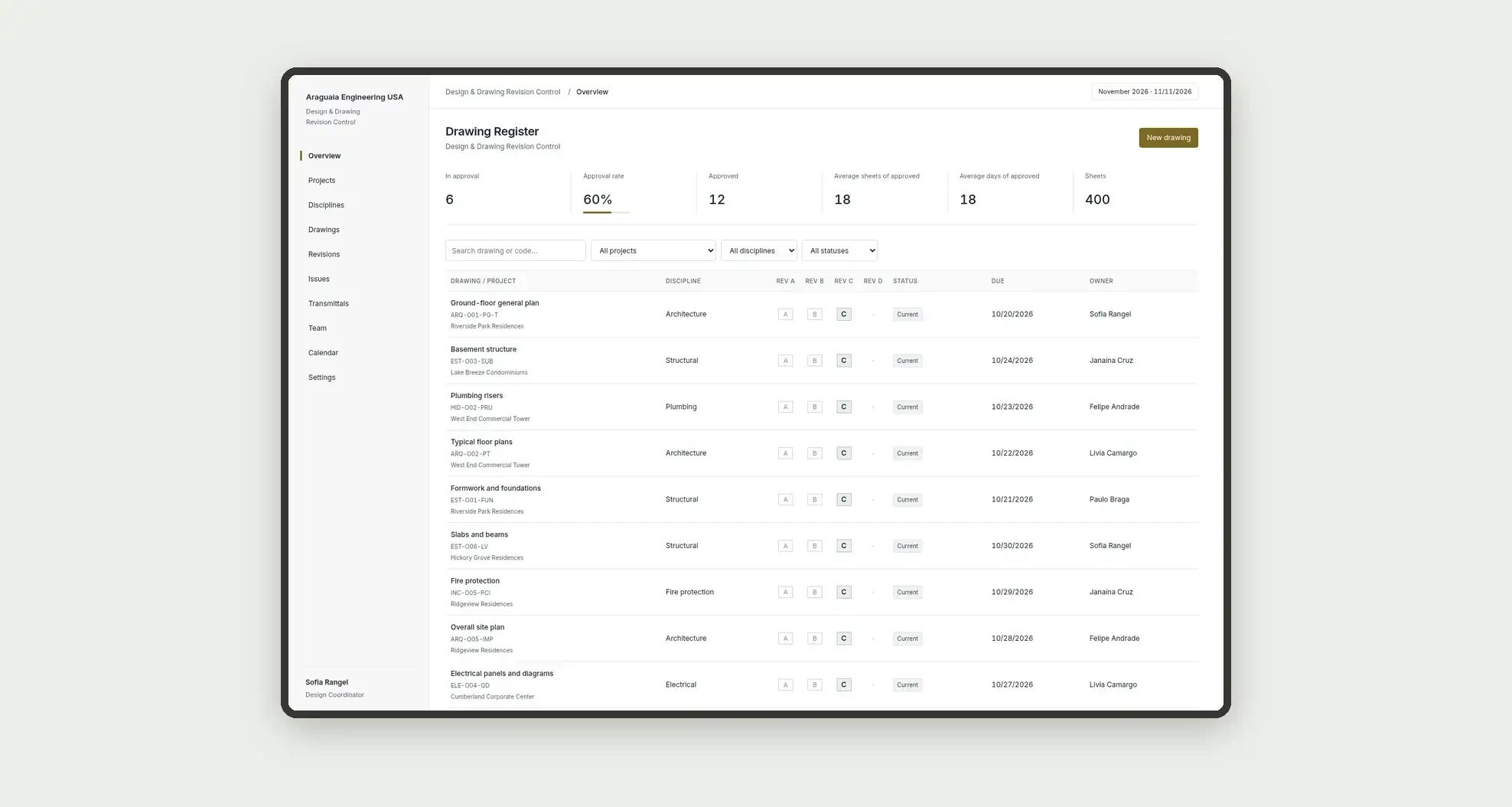
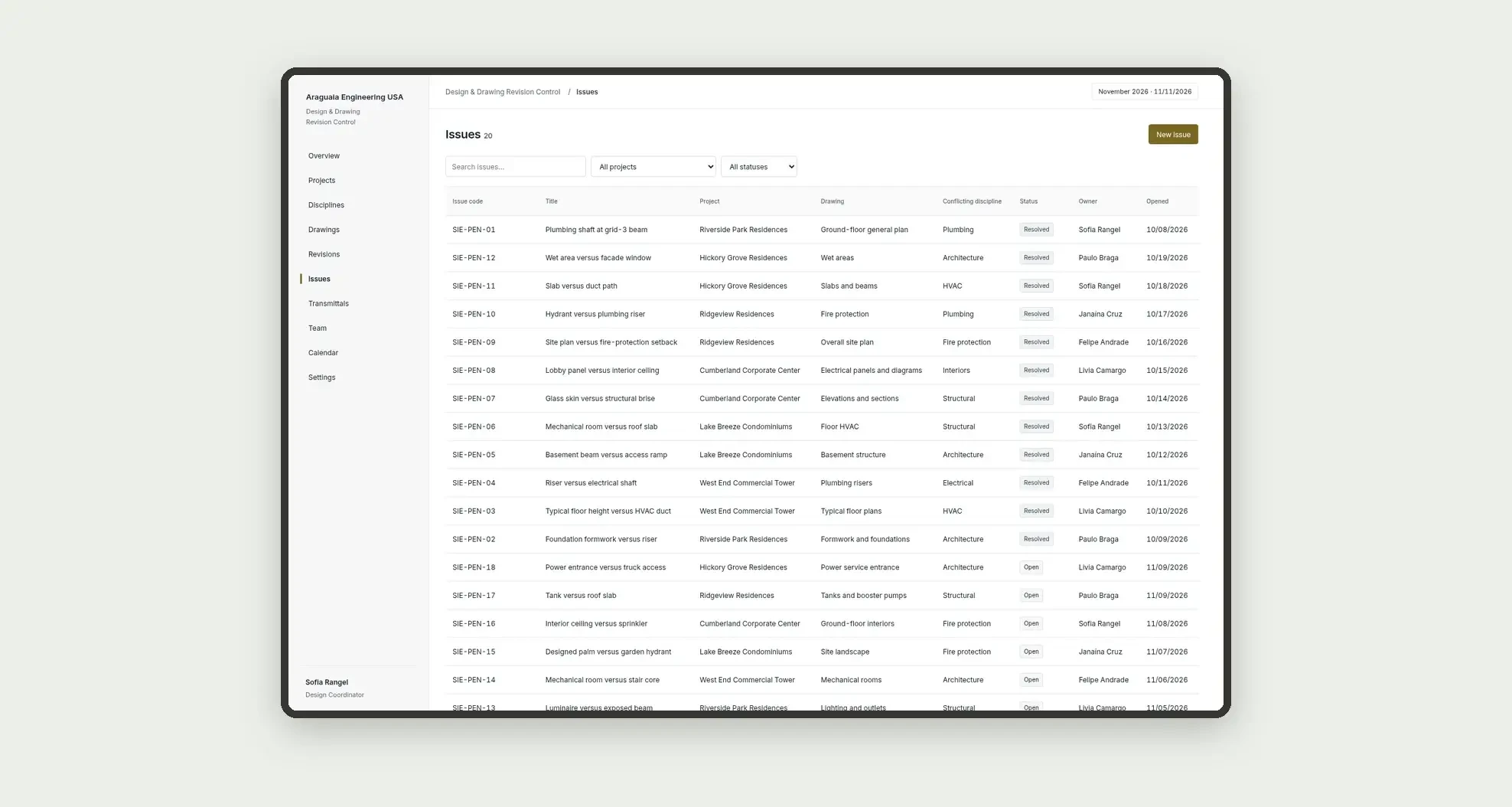
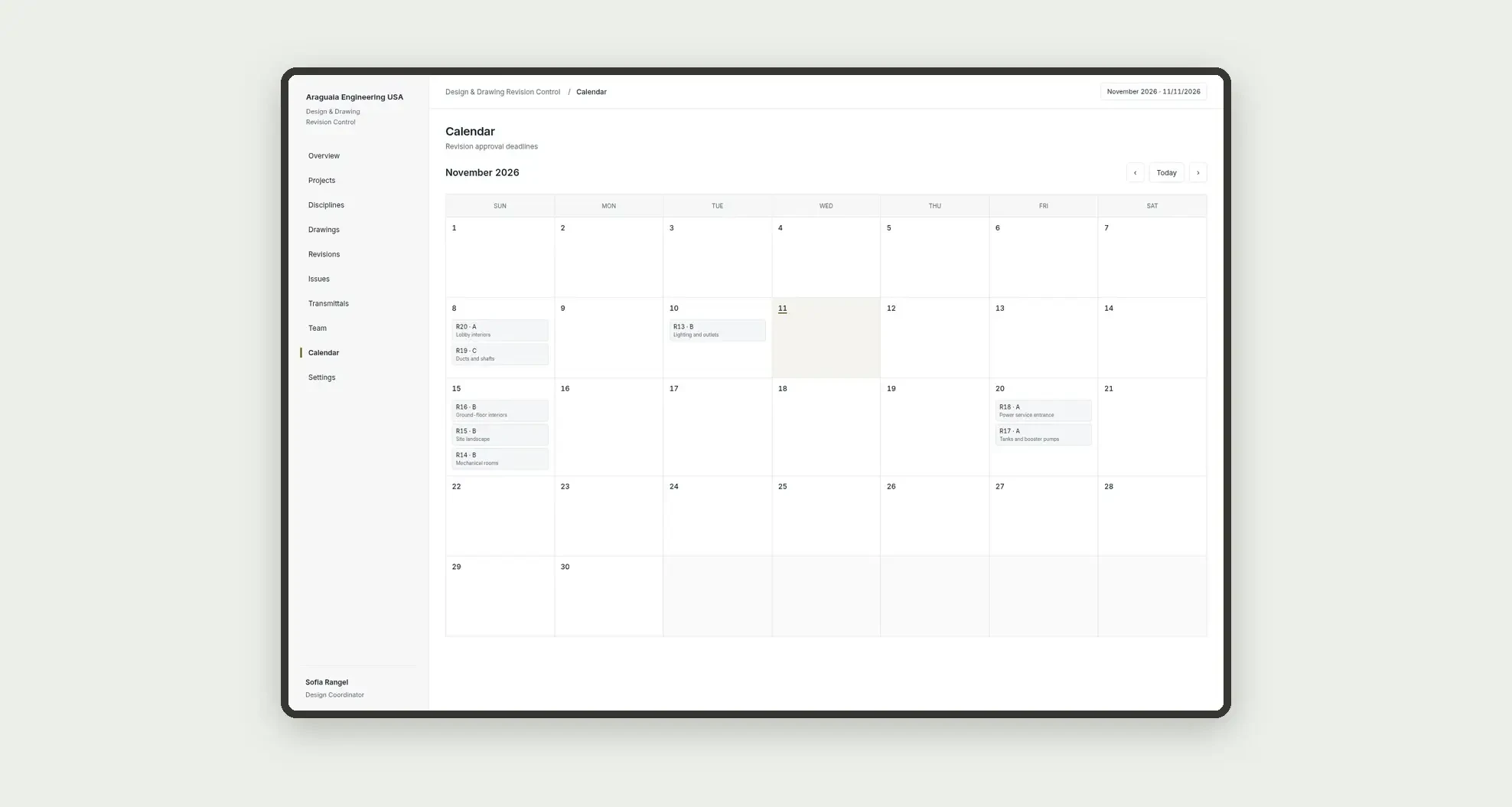
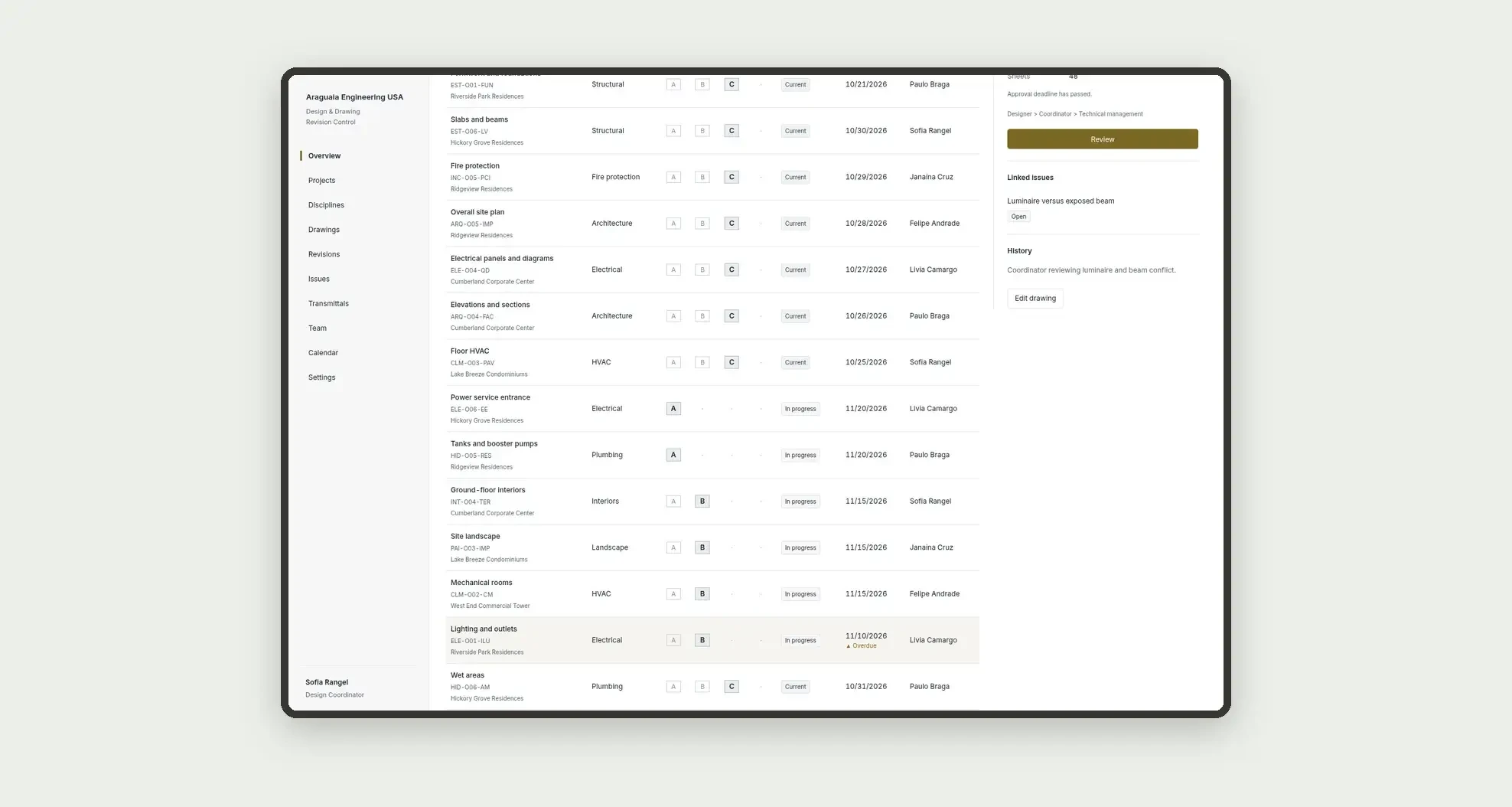
Organize the drawing register by project and discipline (architecture, structural, and MEP), revisions with coordinator approval, coordination issues, transmittals to the jobsite, and a history on each sheet, through a drawing register, a detail panel, a calendar, and linked profiles.
Who it's for
- Homebuilders and developers with several projects in design in the portfolio
- Design coordinators and discipline leads (architecture, structural, and MEP)
- Coordination analysts who log and close issues
- Technical managers who approve revisions and release the transmittal to the jobsite
What you can do
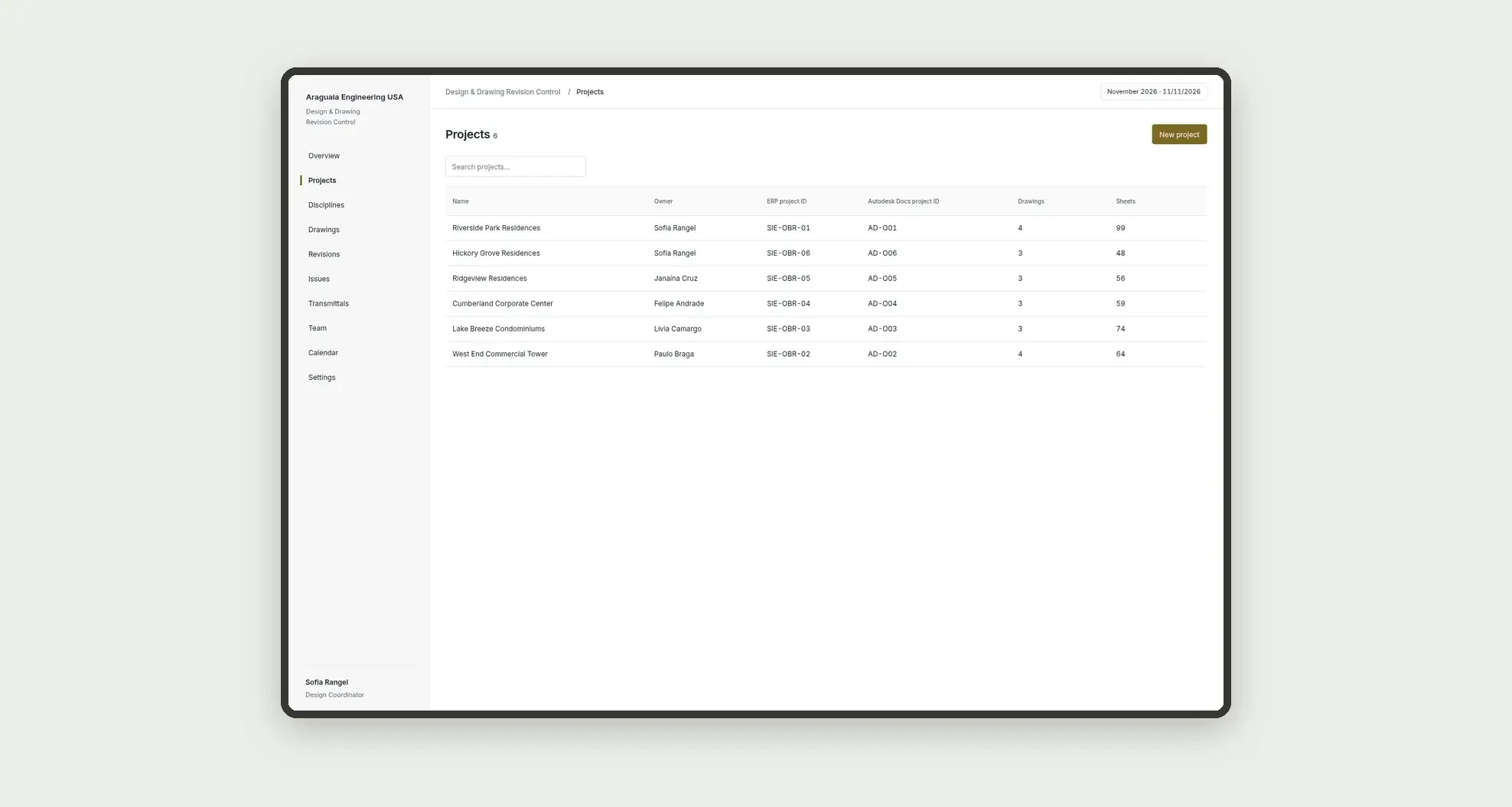
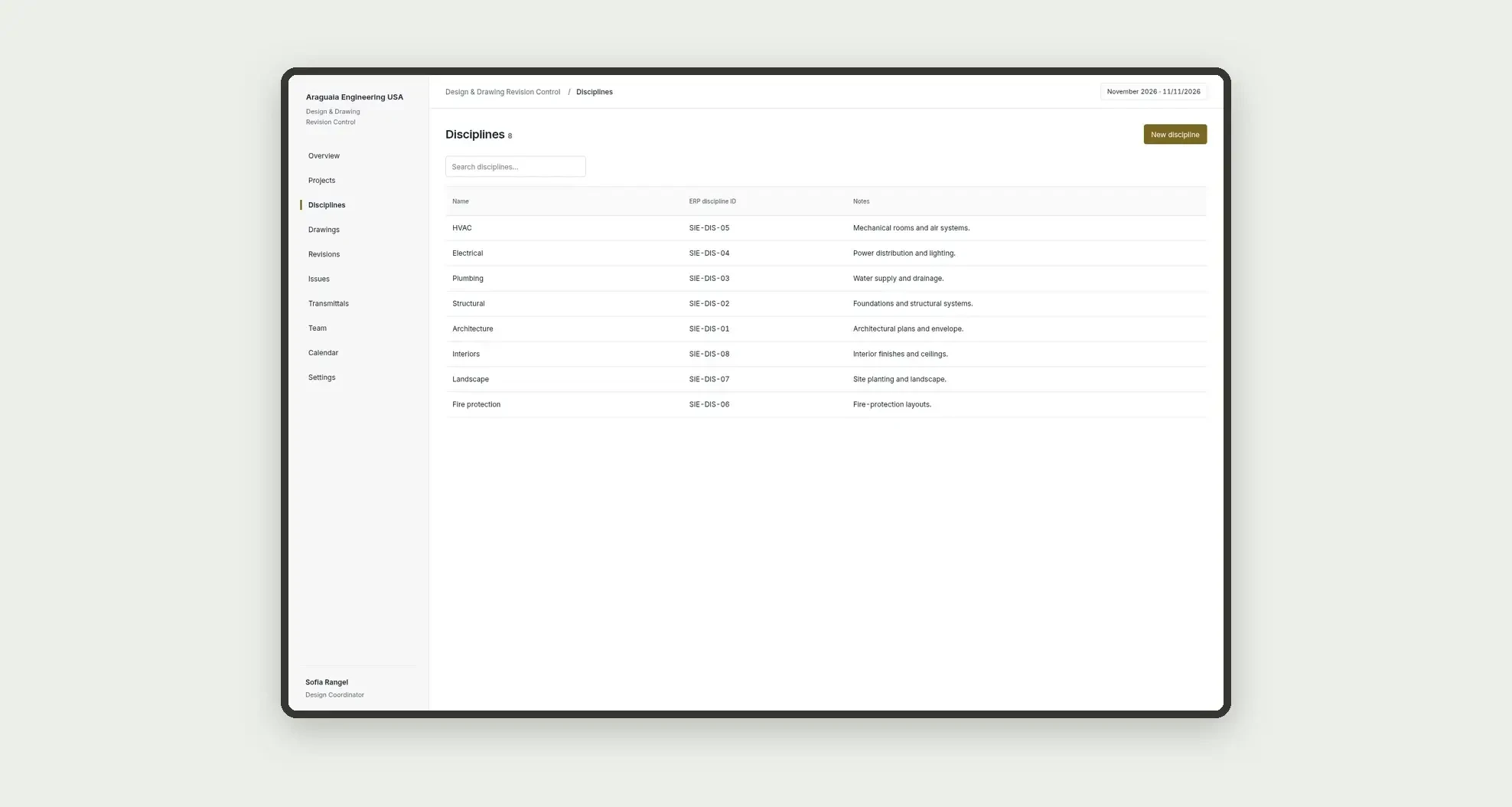
- Register portfolio projects and disciplines, with an ERP code and a document-environment code
- Log drawings and sheets by project and discipline
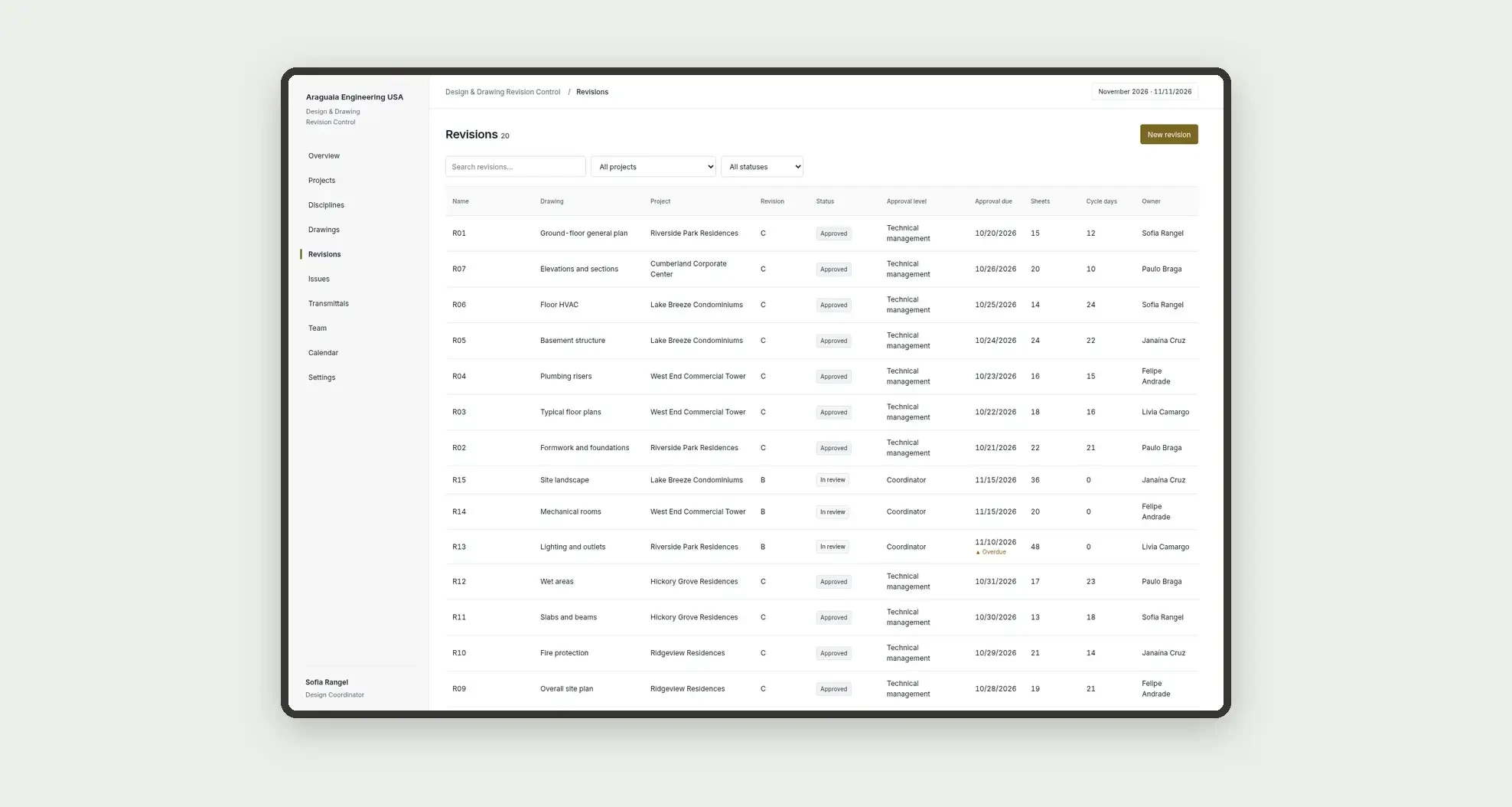
- Log revisions with an approval chain (designer, coordinator, and technical management)
- Log coordination issues between disciplines
- Issue the drawing package to the jobsite or to the subcontractor
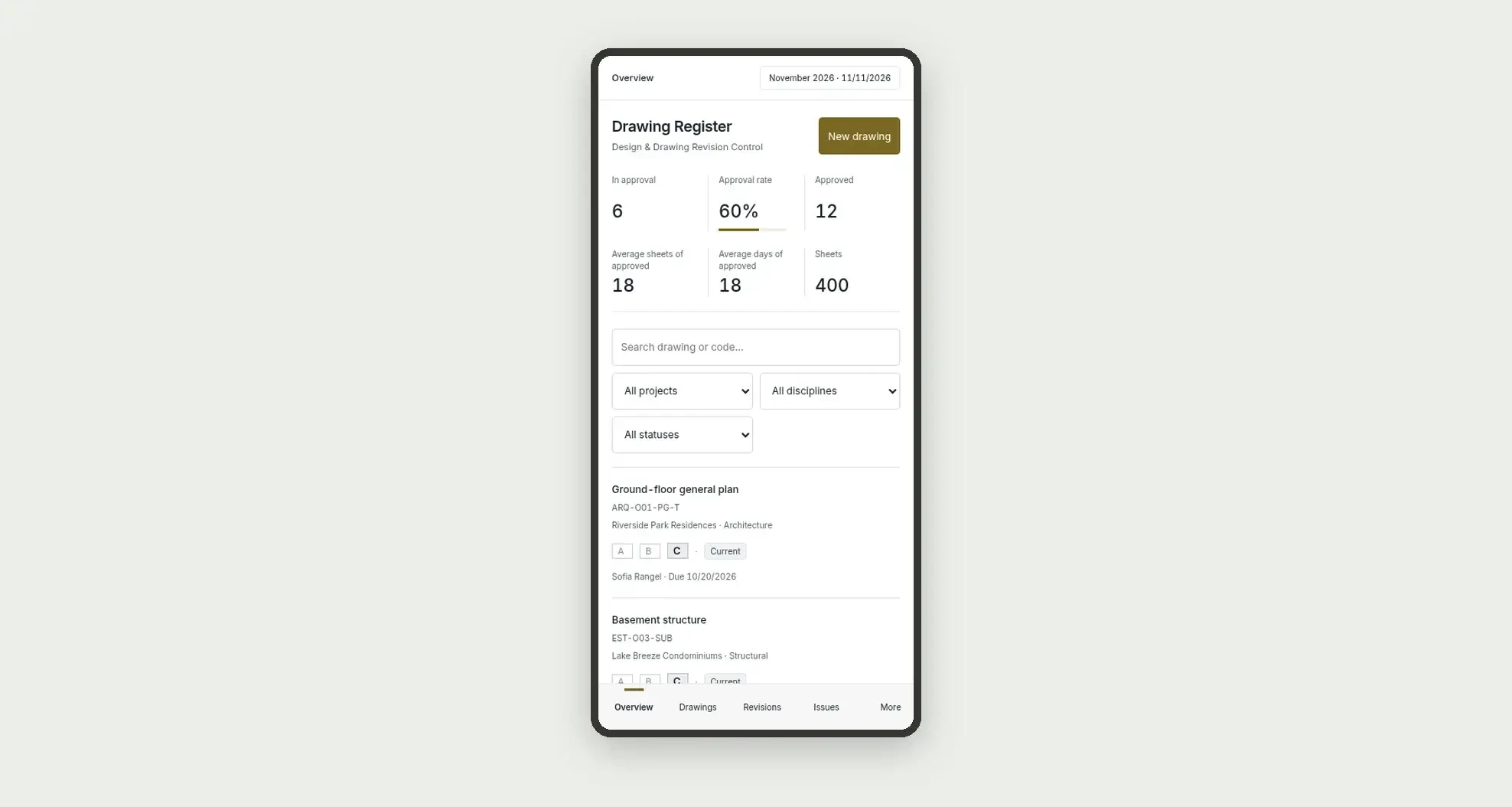
- Review the drawing register and revision status by discipline on the overview
- Follow each owner's load and the deadlines on the calendar, and open the detail with the revision, the issue, and a history
App features
Design & Drawing Revision Control
The Design & Drawing Revision Control screen covers this part of the operation.
How it works
Set up projects, disciplines, and the team.
Enter the drawings in the register, open the revision, log coordination issues, and send the approval.
When the revision is approved, issue the package to the jobsite.
Indicators come from numeric fields on the revisions table itself.
How to set up this template
- 1Click Use App
Create your Jestor account and install Design & Drawing Revision Control. It works on desktop and mobile.
- 2Set up projects
Set up projects, disciplines, and the team.
- 3Enter the drawings in the register
Enter the drawings in the register, open the revision, log coordination issues, and send the approval.
- 4When the revision is approved
When the revision is approved, issue the package to the jobsite.
Integrations and customization
The design supports desktop and mobile use. Projects, disciplines, statuses, approval levels, and deadlines can be adapted to operations. No project schedule or Gantt, generic task management, daily site log, BIM viewer, clash-detection engine, SLA engine, ERP connector (Sienge, UAU, or TOTVS), Autodesk Docs connector, or external integrations are included. ERP and document-environment codes are entered as text.
- Adjust fields, categories, statuses and rules without code.
- Add screens, reports and automations as the operation needs them.
And that's just the start: you can edit any part of this template and go much further just by asking Jestor's AI. Describe what you need, like a new field, automation, report or integration, and the AI builds or adjusts it for you, no code required.
Frequently asked questions
Do KPIs cross tables?
No. Indicators use only the revisions table.
Is this app a CDE, a BIM viewer, or a task manager?
No. It is the drawing register and revision approval, with coordination issues and transmittals to the jobsite.
Does the Review button change status?
No. In this design, the button only opens the detail or a form.
Is SLA logging turned on?
No. The deadline appears in the register and in the panel, without enabling SLA logging.
Are project totals calculated automatically?
No. Document and sheet counts on the project are numeric fields you fill in, with no formula.