What it is
An accounts payable app for finance teams that want no bill paid without approval and no bill paid late. Route each bill through approval rules by amount, schedule payments, and track what is due, overdue and awaiting approval in one place.
Who it's for
- Finance and AP teams at mid-size companies
- Finance managers, controllers and CFOs who approve vendor bills
- Treasury teams that schedule and record payments
- Companies moving bill approvals off email threads and spreadsheets
What you can do
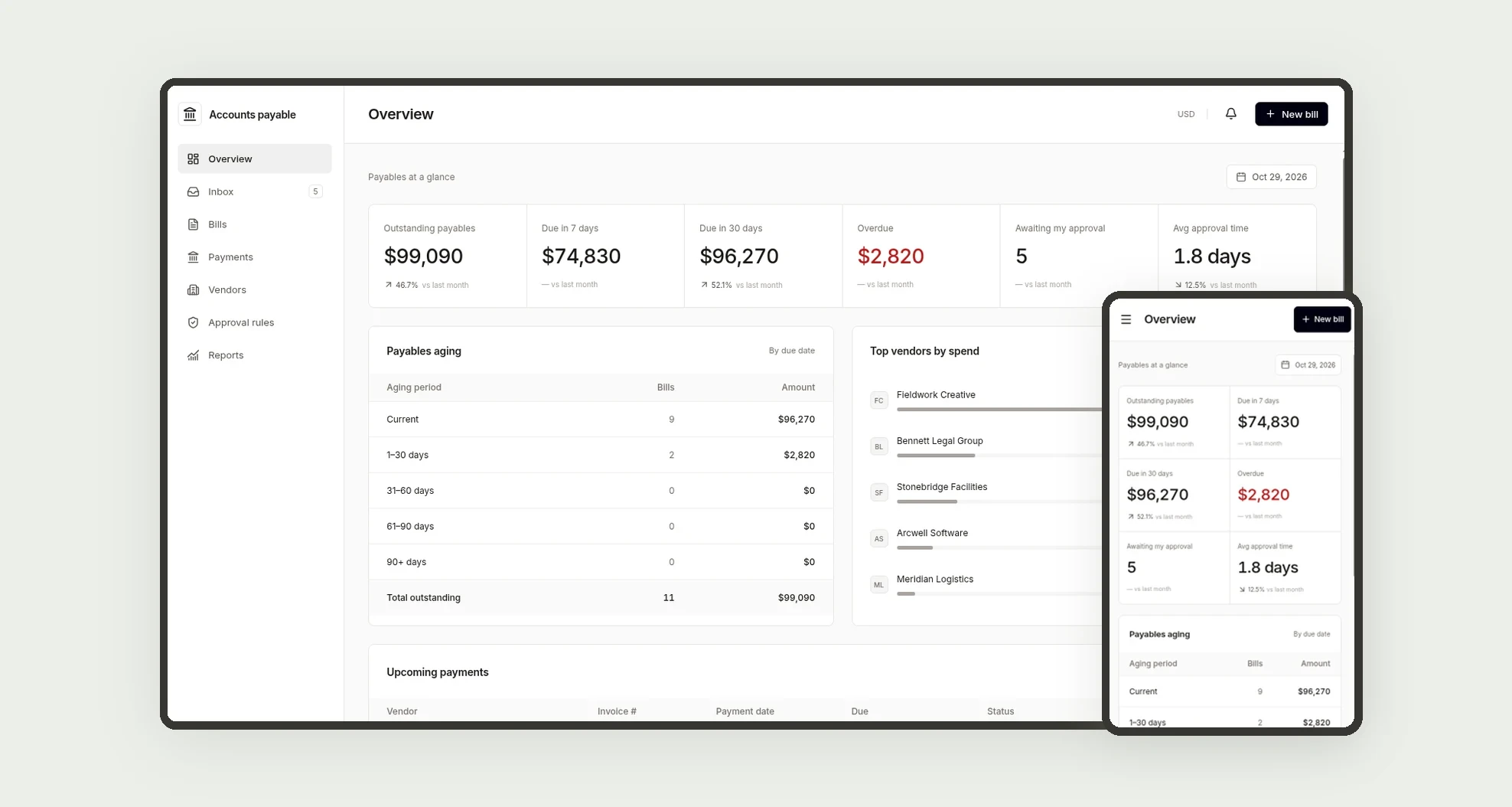
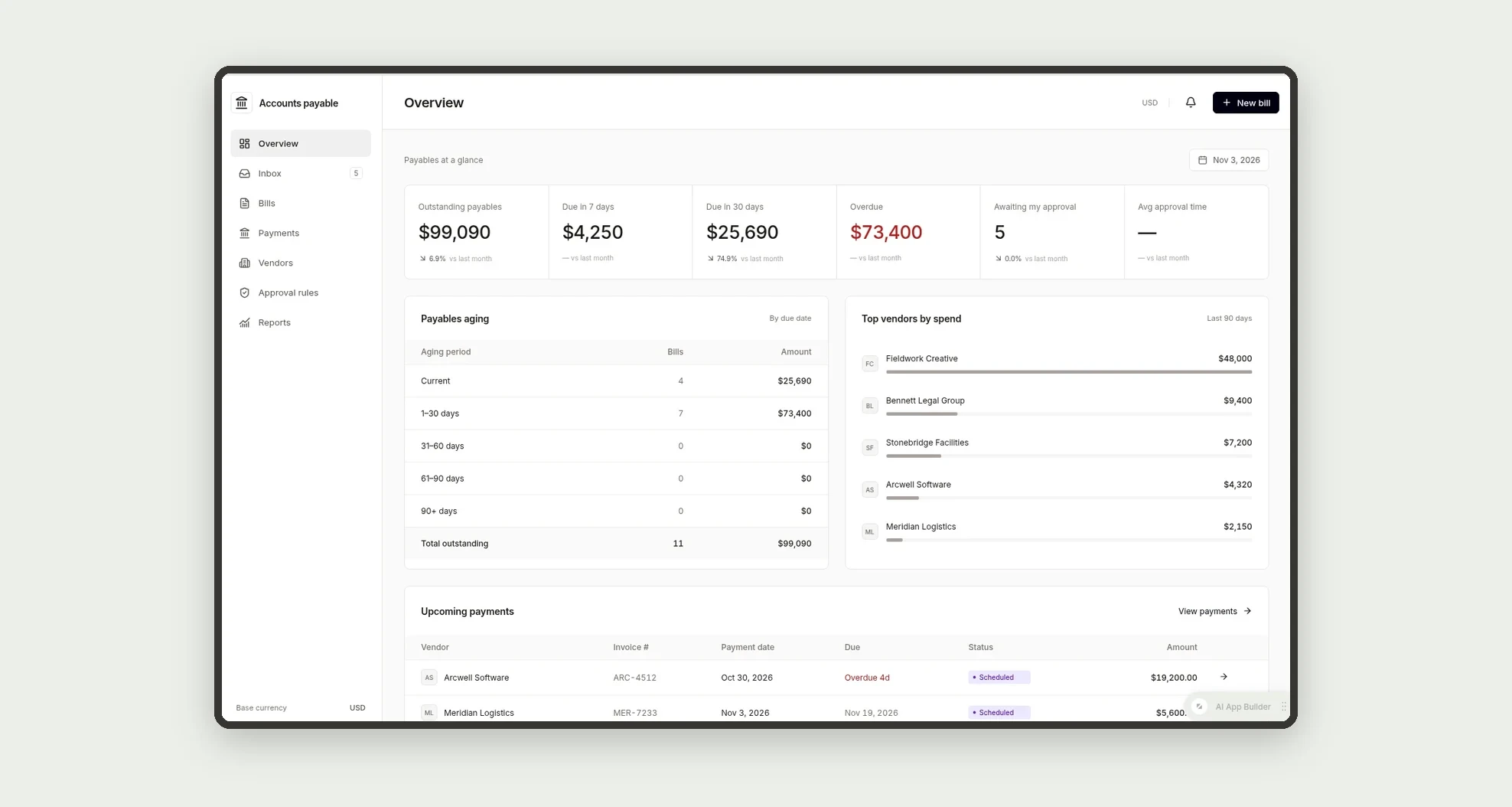
- See outstanding payables, bills due in 7 and 30 days, overdue bills, bills awaiting your approval and average approval time on the Overview
- Read payables aging by bucket (Current, 1-30, 31-60, 61-90, 90+), top vendors by spend and upcoming payments
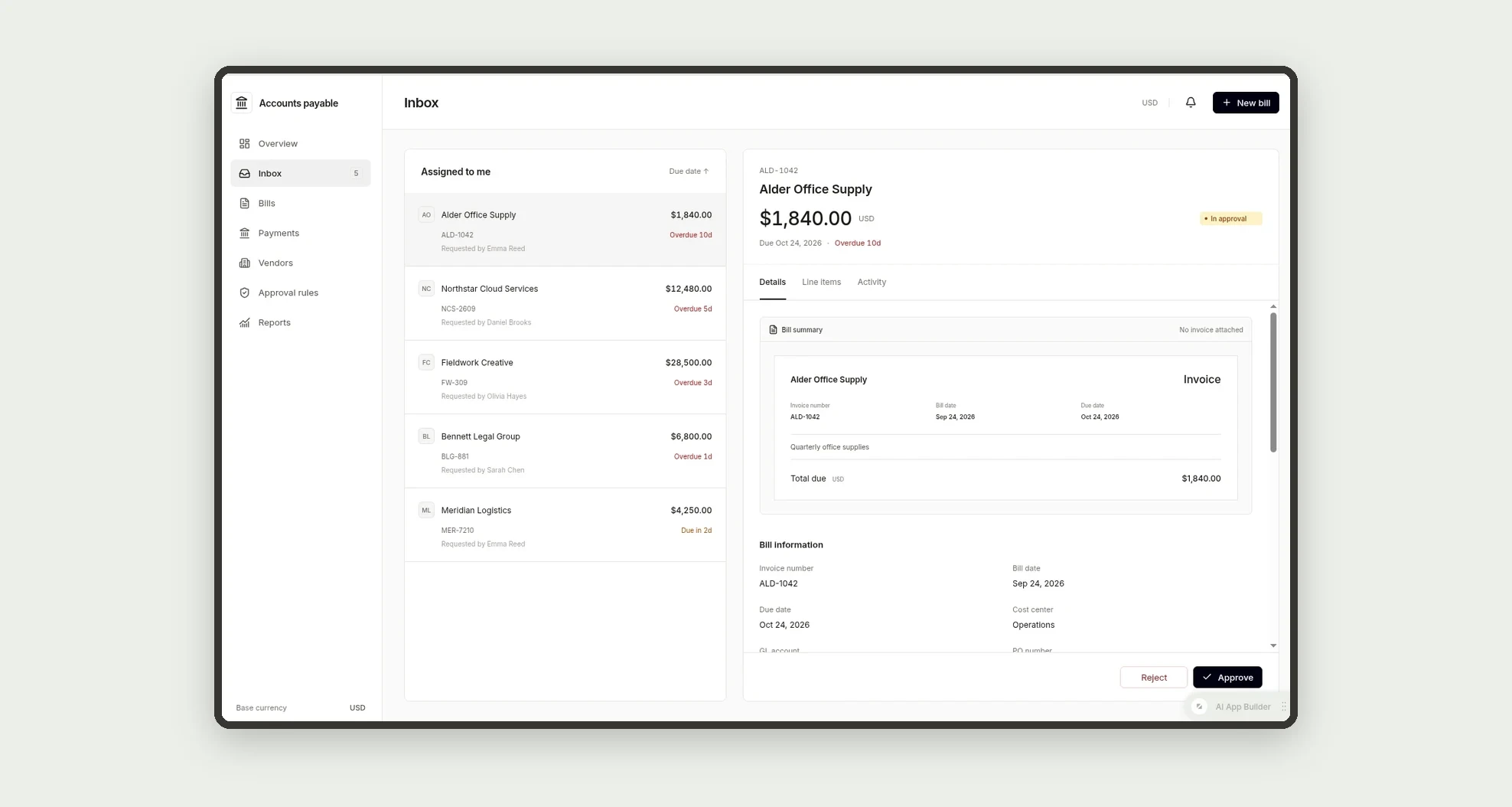
- Approve or reject bills in a two-pane inbox, with Undo right after each decision
- Route bills through multi-step approval based on amount rules
- Require a reason for every rejection
- Get a warning when a bill repeats the same vendor and invoice number
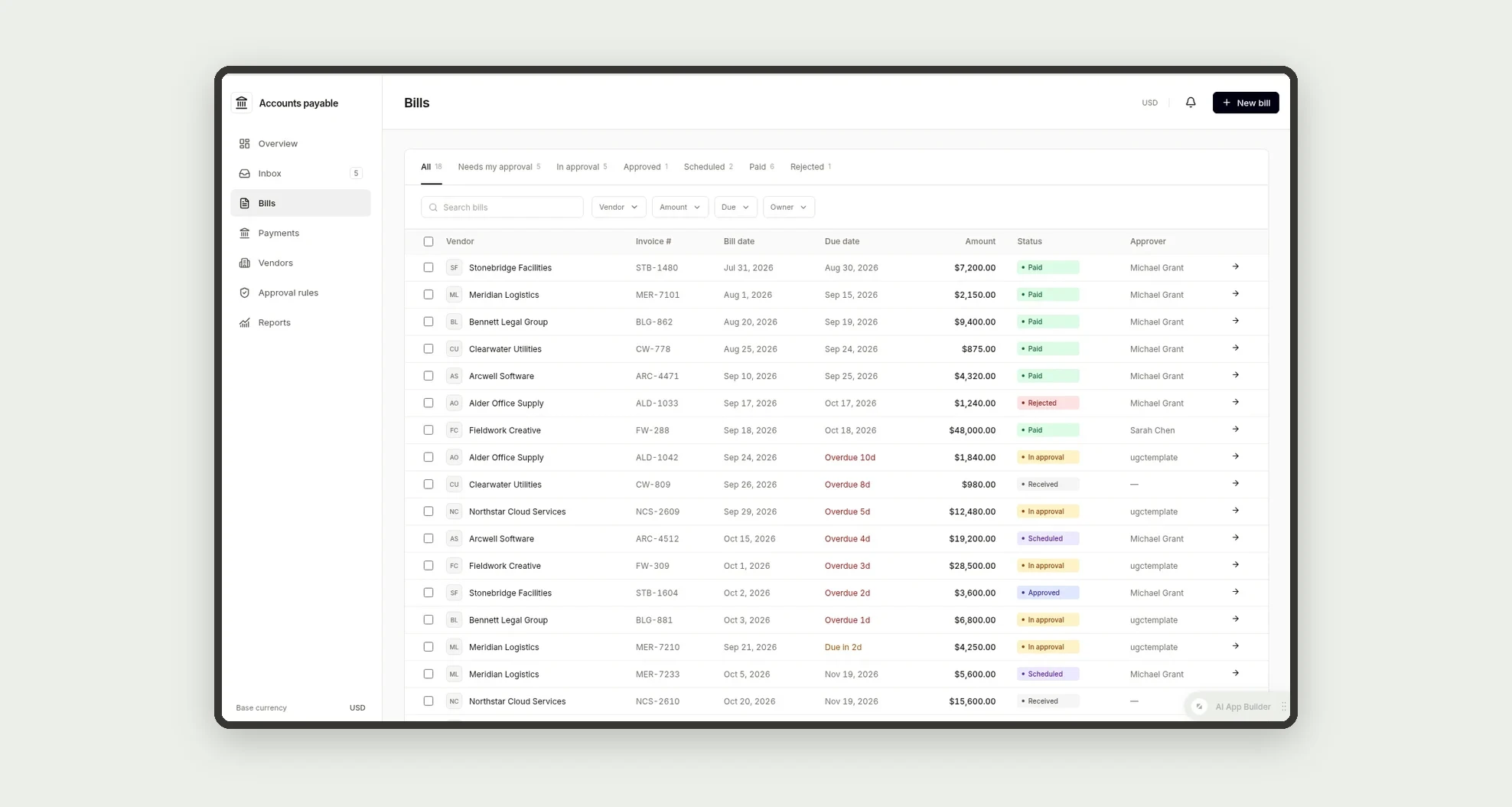
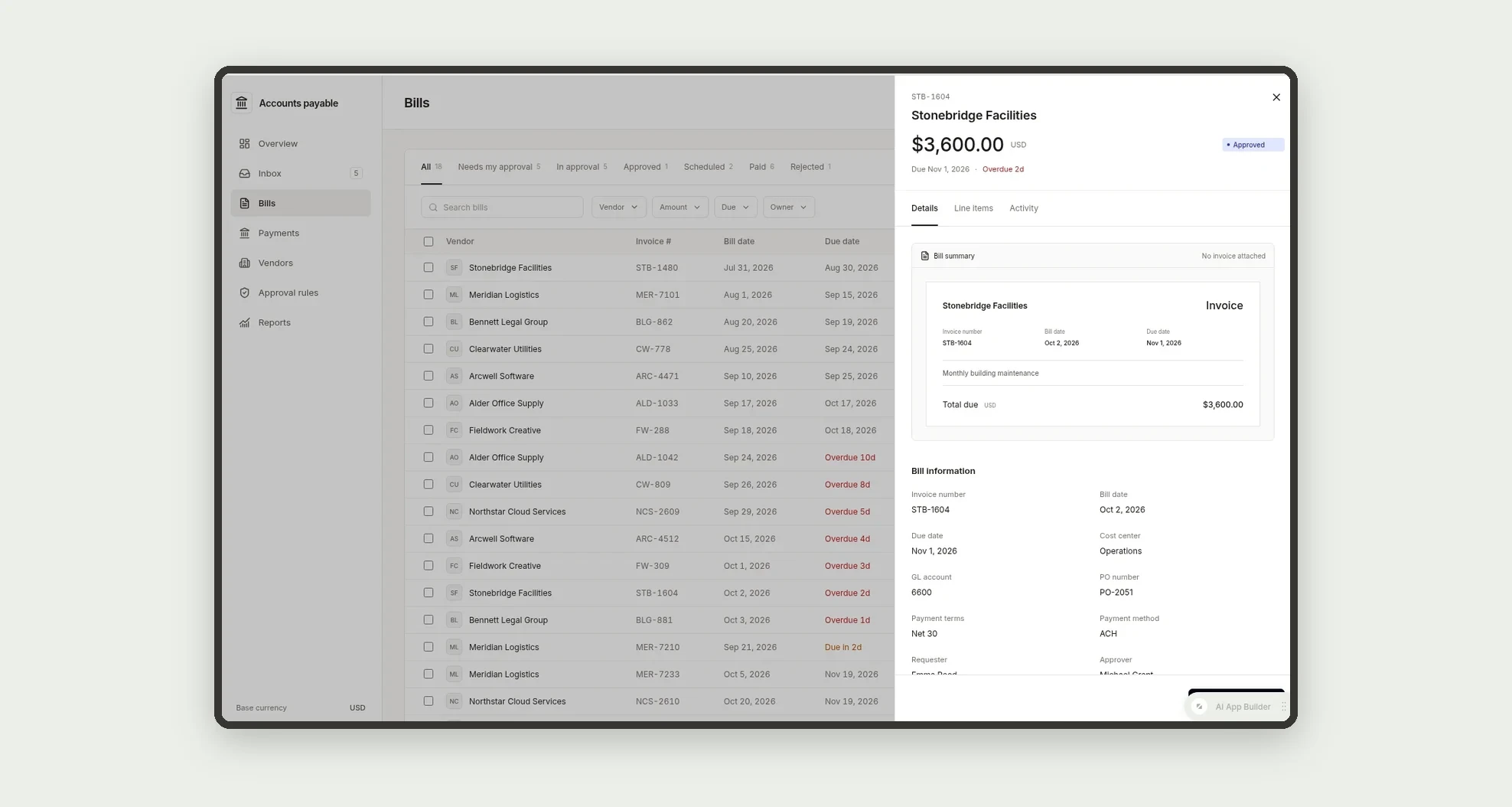
- Filter bills by status tabs (All, Needs my approval, In approval, Approved, Scheduled, Paid, Rejected), use bulk actions and export to CSV
- Group scheduled and paid bills into payment batches and review each vendor's payment history
App features
Overview
The payment is recorded as paid, and the Overview and Reports update.
Inbox
Each approver approves or rejects from the Inbox; rejections need a reason, and every decision goes to the activity log.
Bills
Route bills through multi-step approval based on amount rules.
Payments
Read payables aging by bucket (Current, 1-30, 31-60, 61-90, 90+), top vendors by spend and upcoming payments.
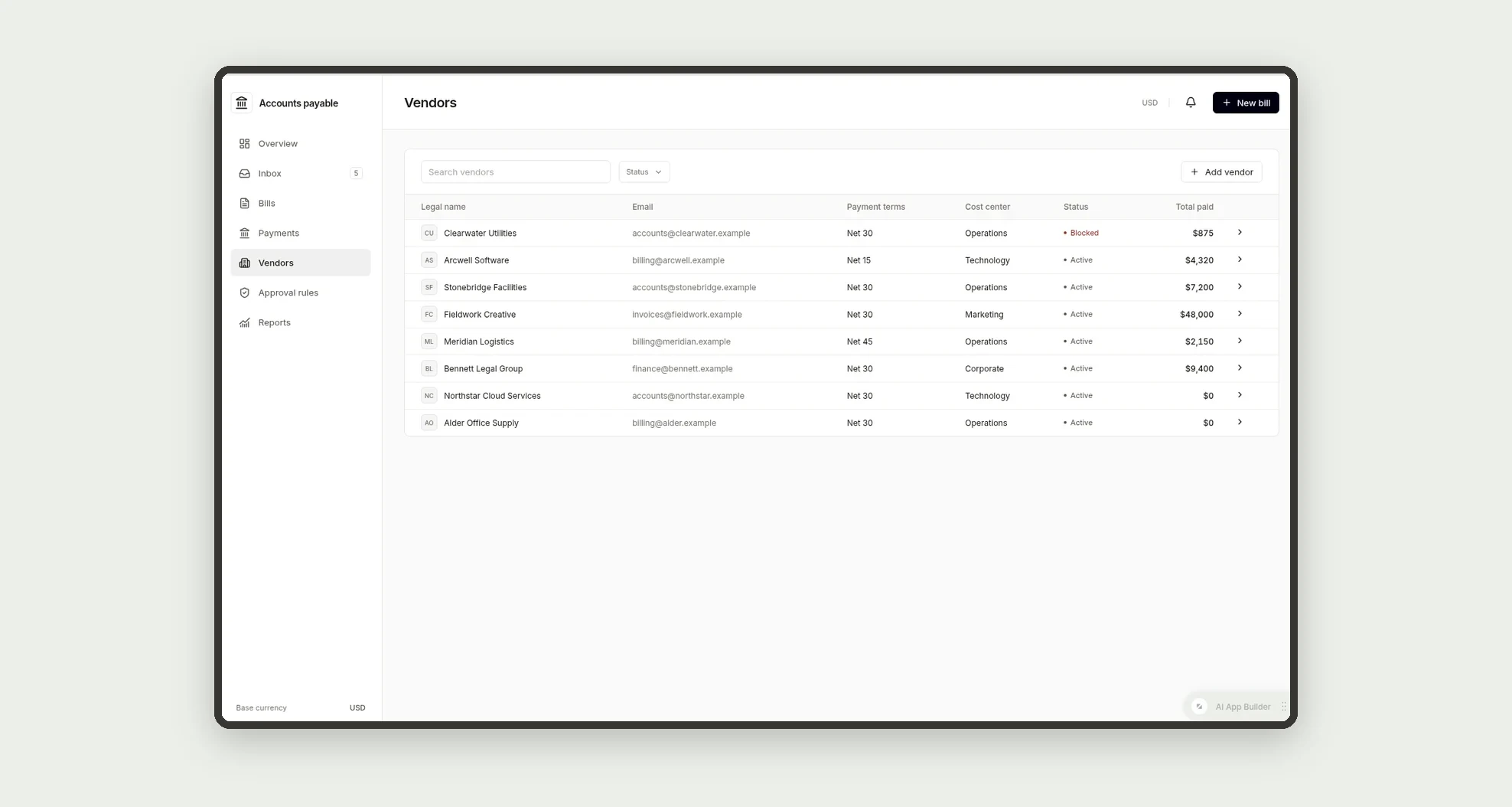
Vendors
Read payables aging by bucket (Current, 1-30, 31-60, 61-90, 90+), top vendors by spend and upcoming payments.
Approval rules
The Approval rules screen covers this part of the operation.
Reports
The payment is recorded as paid, and the Overview and Reports update.
How it works
A bill is added with vendor, invoice number, dates, amount and cost center. The matching approval rule sets who approves it, in one or two steps depending on the amount.
Each approver approves or rejects from the Inbox; rejections need a reason, and every decision goes to the activity log. Approved bills are scheduled for payment and grouped into payment batches.
The payment is recorded as paid, and the Overview and Reports update.
How to set up this template
- 1Click Use App
Create your Jestor account and install Accounts Payable. It works on desktop and mobile.
- 2A bill is added with vendor
A bill is added with vendor, invoice number, dates, amount and cost center.
- 3The matching approval rule sets who approves it
The matching approval rule sets who approves it, in one or two steps depending on the amount.
- 4Each approver approves or rejects from the Inbox; rejections
Each approver approves or rejects from the Inbox; rejections need a reason, and every decision goes to the activity log.
Integrations and customization
Works on desktop and mobile. Approval rules, cost centers and vendors can be changed without code, and you can add fields, tables and automations to fit your process. With Jestor automations you can add bill intake by email, AI extraction of invoice fields and reminders after 48 hours without a decision. The app records and schedules payments but does not move money; connecting it to your ERP or bank is a possible adaptation.
- Adjust fields, categories, statuses and rules without code.
- Add screens, reports and automations as the operation needs them.
And that's just the start: you can edit any part of this template and go much further just by asking Jestor's AI. Describe what you need, like a new field, automation, report or integration, and the AI builds or adjusts it for you, no code required.
Frequently asked questions
How are approvers chosen?
Each approval rule has an amount range and one or two approver steps. A bill follows the rule that matches its amount.
Does the app pay vendors?
No. It records and schedules payments and marks bills as paid. The money moves through your bank or payment tool.
What happens if the same bill is entered twice?
The app warns you when a bill has the same vendor and invoice number as an existing one.
Can I undo an approval or rejection?
Yes. Right after a decision, a message with Undo lets you reverse it.
Does it come with sample data?
Yes. The template includes 8 fictitious vendors, 18 bills across all statuses, 4 cost centers and 3 approval rules so you can explore every view before adding your own data.