What it is
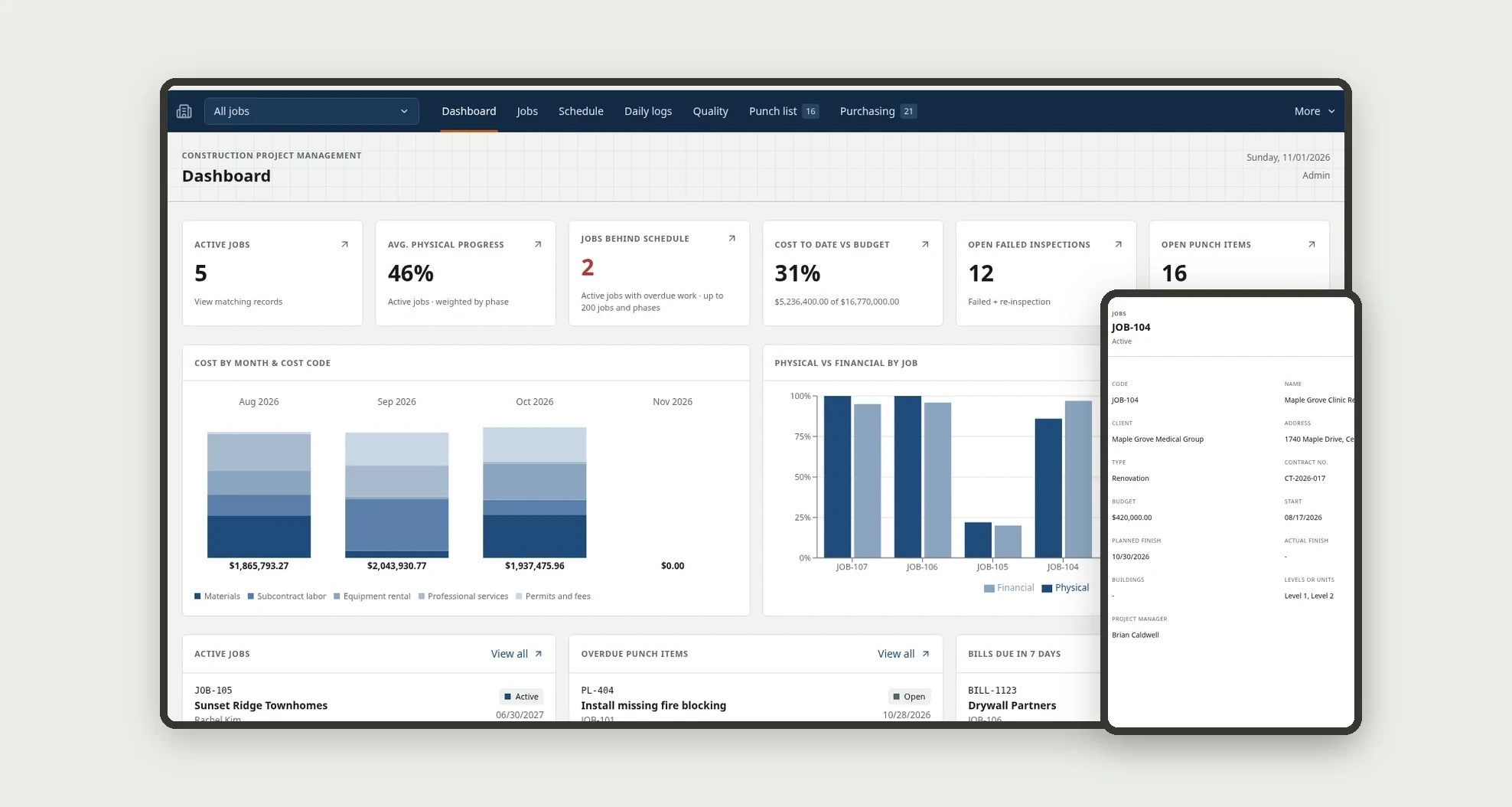
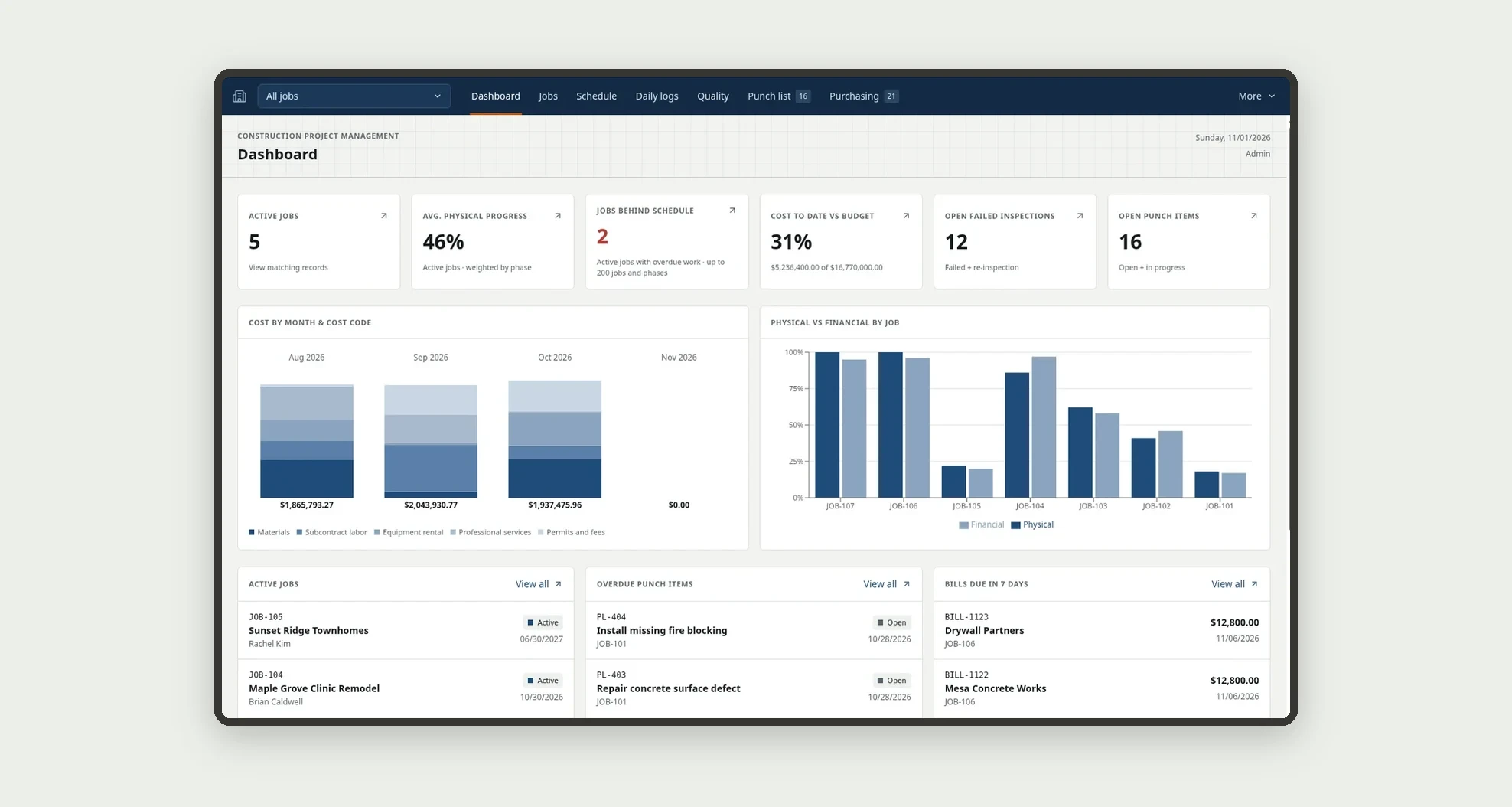
A template for small and mid-size general contractors running several jobs at once: planned vs actual schedule, daily logs, floor-by-floor quality inspections, punch list, purchasing, subcontractor pay applications and bills, all tied to each job. The dashboard shows at a glance which jobs are behind schedule or spending ahead of physical progress.
Who it's for
- General contractors and builders running several jobs in parallel
- Project managers and superintendents who fill in daily logs and inspections on site
- Purchasing teams that quote and approve material requests per job
- Accounting teams that pay subcontractor pay apps, materials and equipment rentals
- Owners who need to see physical vs financial progress for every job
What you can do
- Filter every screen by job with the global job picker in the top bar
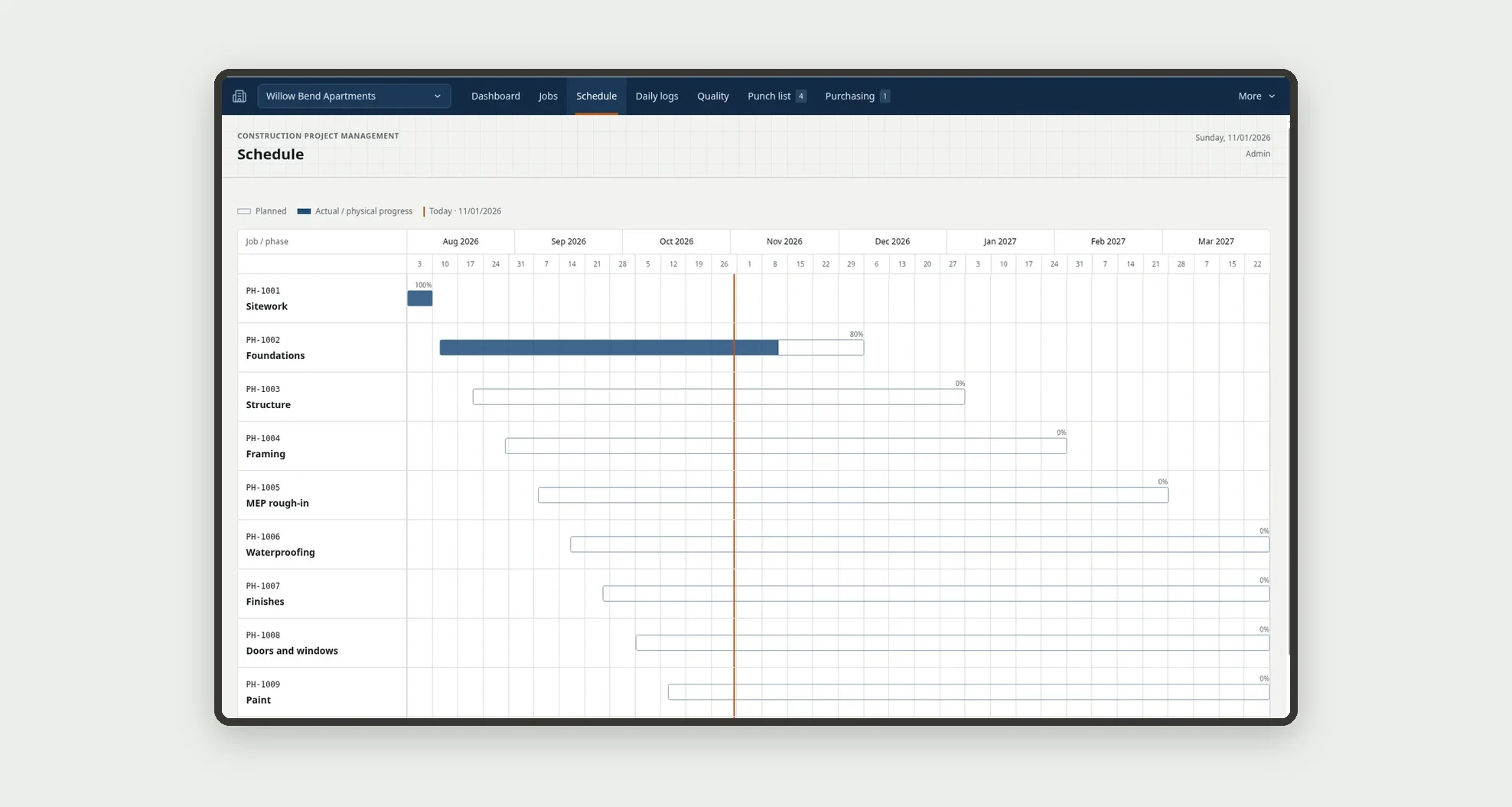
- Follow the schedule on a Gantt chart with planned bars, actual bars and late phases highlighted
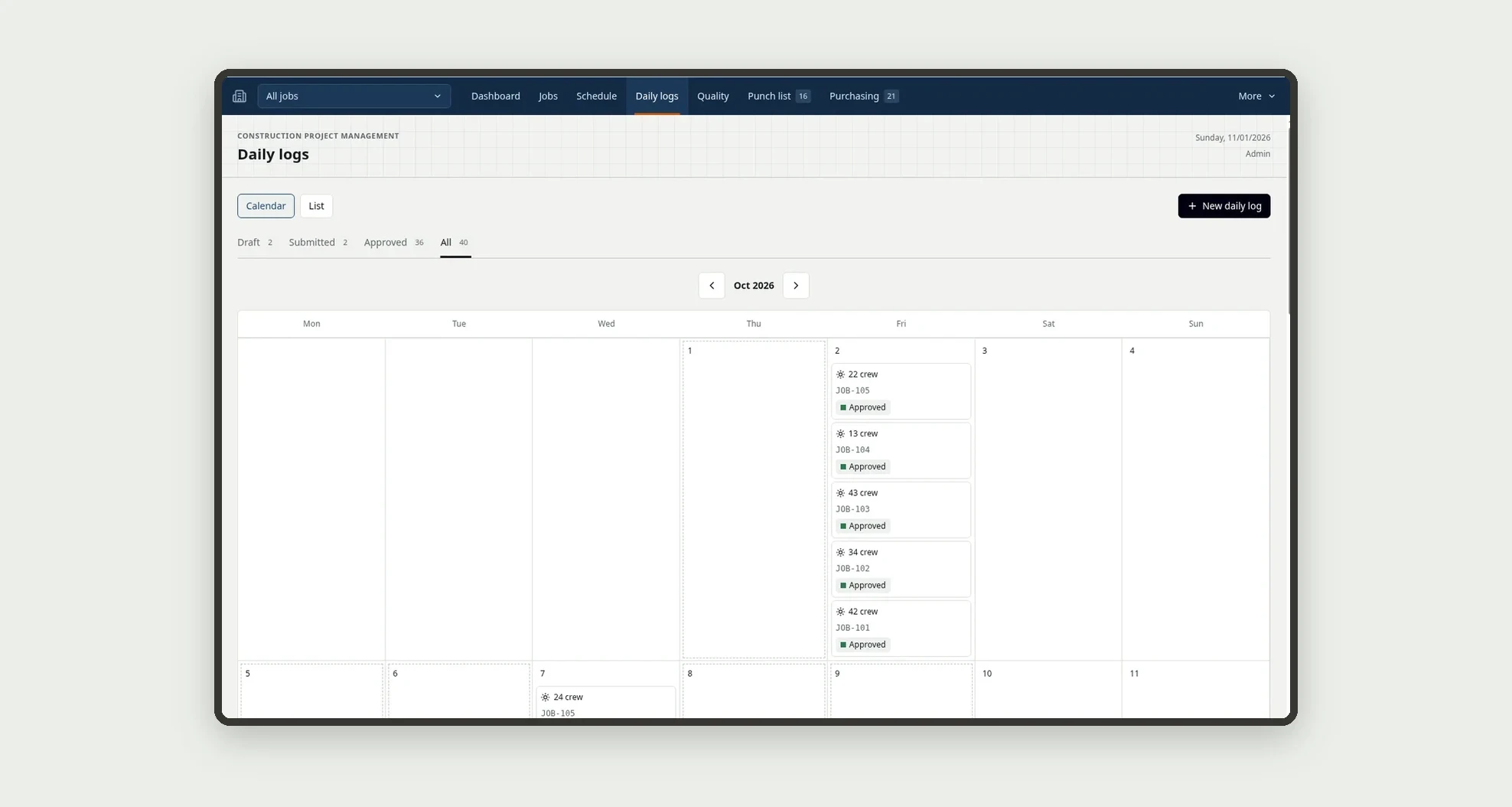
- Record the daily log with weather, crew, work performed and issues, copy it from the previous day and print or save it as PDF
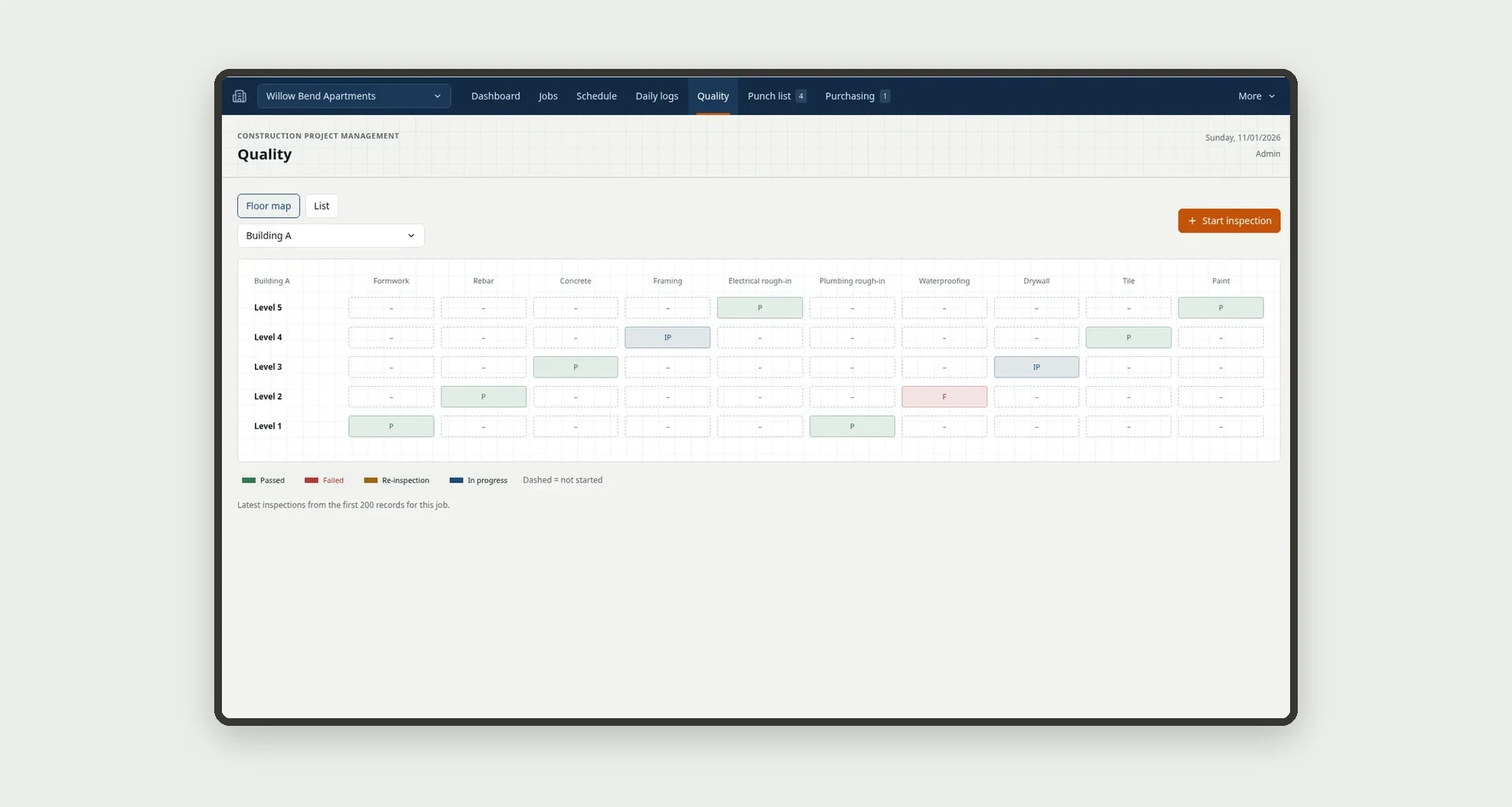
- Start inspections by building and level and see the status of every trade on the floor map
- Create punch items automatically from failed inspection items
- Compare 3 vendor quotes side by side and approve purchases within the approval limit
- Approve subcontractor pay apps with 10% retainage and create the bill to pay
- Track owned and rented equipment, allocations and cost per job
App features
Dashboard
The Dashboard and Reports show physical progress, cost to date vs budget, delays and open punch items.
Jobs
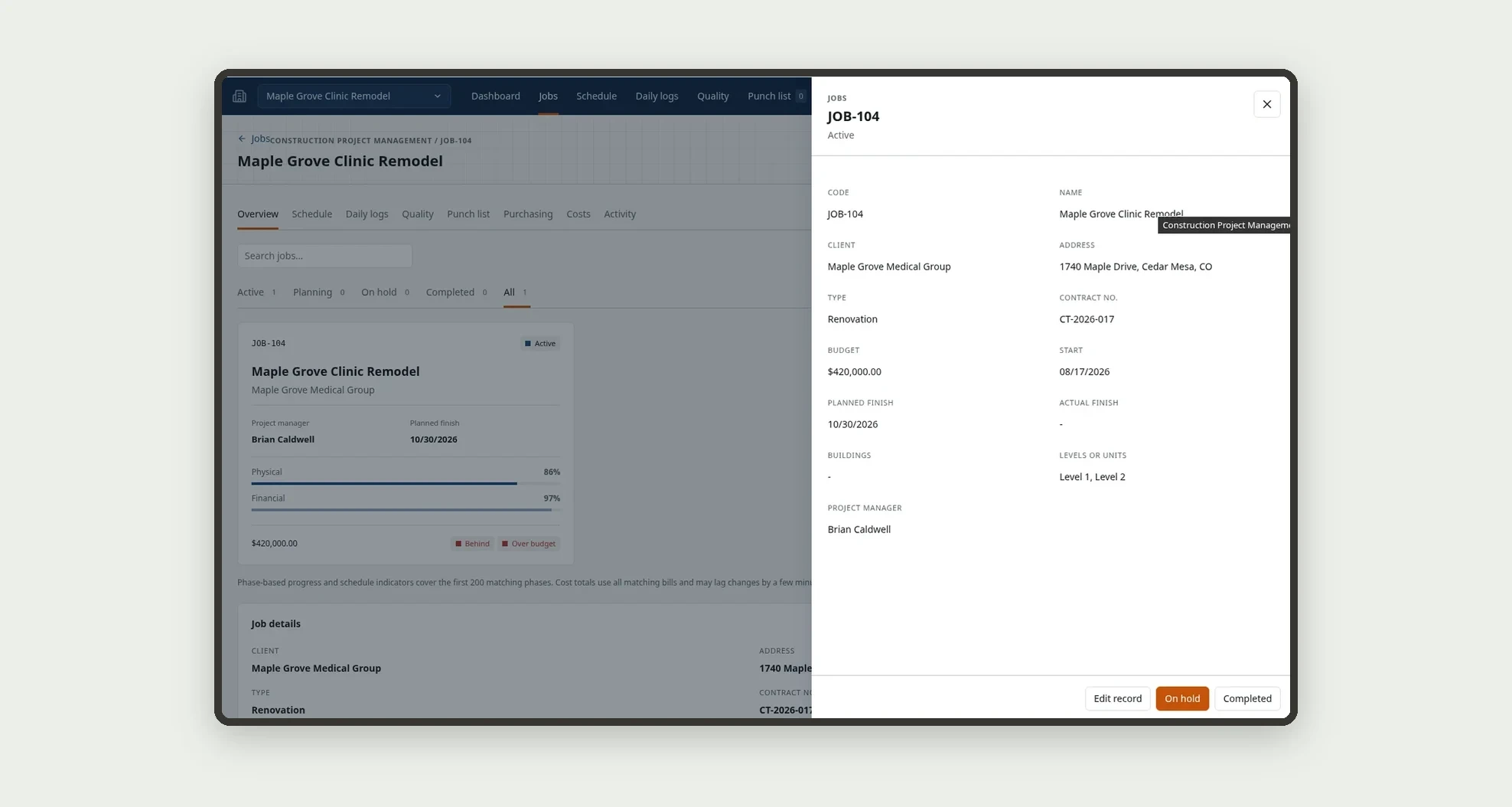
Create jobs and their phases with weight, budget and planned dates.
Schedule
Follow the schedule on a Gantt chart with planned bars, actual bars and late phases highlighted.
Daily logs
The Daily logs screen covers this part of the operation.
Quality
The Quality screen covers this part of the operation.
Punch list
The Punch list screen covers this part of the operation.
Purchasing
The Purchasing screen covers this part of the operation.
Pay apps
Approve subcontractor pay apps with 10% retainage and create the bill to pay.
Bills
Approved pay apps create subcontract labor bills; paying the bill marks the pay app Paid.
Equipment
Track owned and rented equipment, allocations and cost per job.
Reports
The Dashboard and Reports show physical progress, cost to date vs budget, delays and open punch items.
Directory
Add the company, team, subcontractors, vendors and checklist templates in Directory.
How it works
Add the company, team, subcontractors, vendors and checklist templates in Directory. Create jobs and their phases with weight, budget and planned dates.
On site, the team fills in the daily log and the inspections for each level; failed items become punch items. Purchase requests move through quoting, approval, PO and receiving; receiving creates the bill.
Approved pay apps create subcontract labor bills; paying the bill marks the pay app Paid. The Dashboard and Reports show physical progress, cost to date vs budget, delays and open punch items.
How to set up this template
- 1Click Use App
Create your Jestor account and install Construction Project Management. It works on desktop and mobile.
- 2Add the company
Add the company, team, subcontractors, vendors and checklist templates in Directory.
- 3Create jobs and their phases with weight
Create jobs and their phases with weight, budget and planned dates.
- 4On site
On site, the team fills in the daily log and the inspections for each level; failed items become punch items.
Integrations and customization
The template works on desktop and mobile and can be adapted without code.
- Works on desktop and mobile, with screens designed for the job site
- Follows the Jestor light or dark theme automatically
- Admin, Project manager, Field, Purchasing and Accounting roles control what each person sees
- Phases, inspection trades, cost codes, the approval limit and fields can be adjusted without code
And that's just the start: you can edit any part of this template and go much further just by asking Jestor's AI. Describe what you need, like a new field, automation, report or integration, and the AI builds or adjusts it for you, no code required.
Frequently asked questions
How does the app calculate physical progress?
It adds up each phase's weight multiplied by its percent complete.
When is a job marked as behind schedule?
When it has an unfinished phase whose planned finish has passed, or when the job's planned finish date has passed.
What happens when an inspection item fails?
The inspection is marked Failed and the app creates a punch item for that item, with the inspection and location linked.
Can I require approval for large purchases and pay apps?
Yes. Above the approval limit set in Company settings, only an Admin can approve.
Can I use the template with the sample data?
Yes. The data is fictitious and lets you explore the app before adding your own jobs.