What it is
An employee onboarding app for HR teams that want every new hire ready on day one, with documents, access and equipment in place. Follow each person from offer accepted to the 90-day check-in, with tasks for HR, managers, IT and facilities.
Who it's for
- HR teams that hire every month
- Managers who welcome new people to their team
- IT and facilities teams that prepare accounts, laptops and badges
- Companies of 100 to 1,000 people moving off checklists in spreadsheets
What you can do
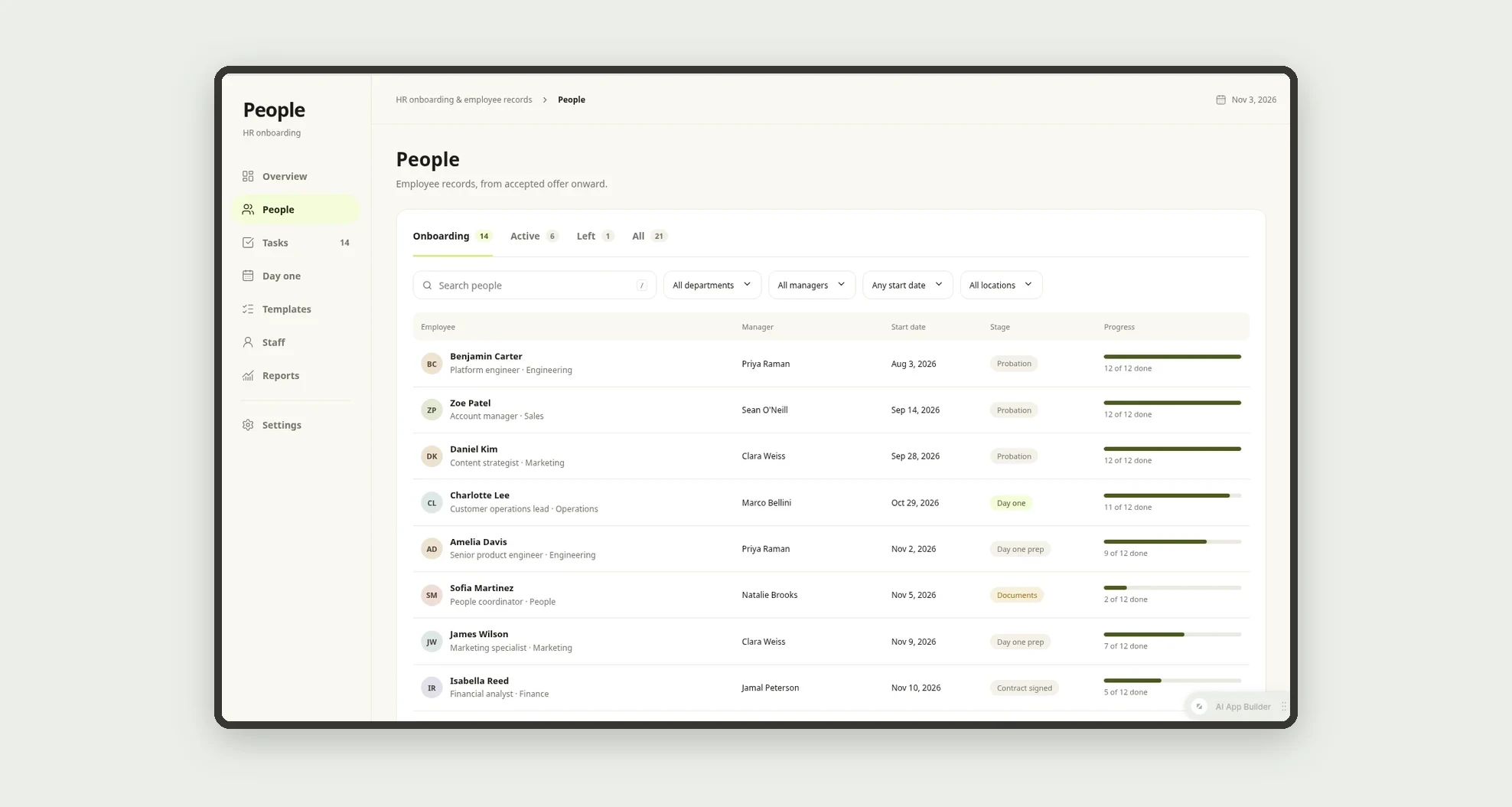
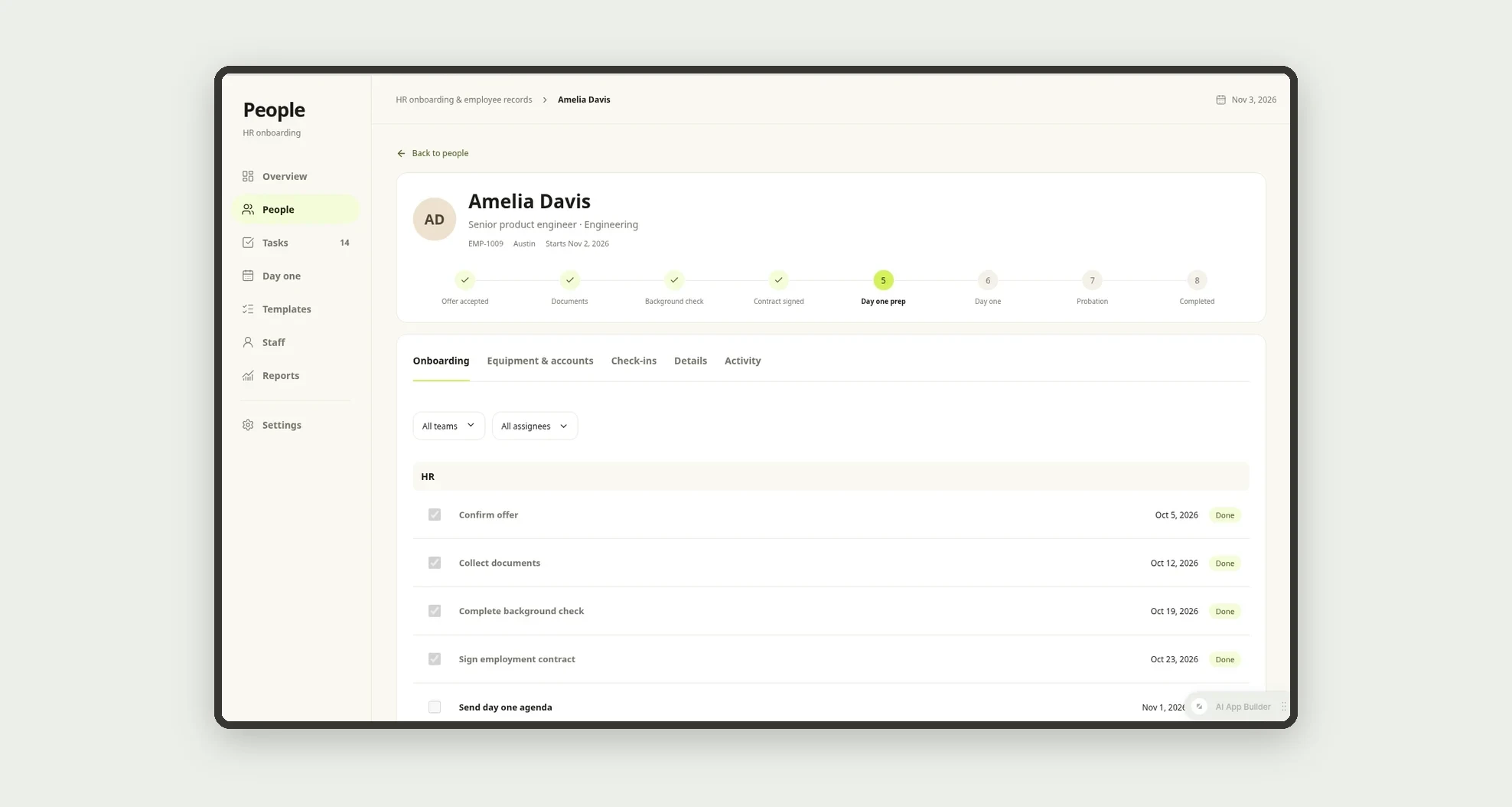
- Follow each new hire through stages from offer accepted to the end of onboarding
- Create onboarding tasks from templates by job family, with due dates relative to the start date
- Review and approve documents, with a required reason when one is rejected
- Prepare equipment and accounts before day one
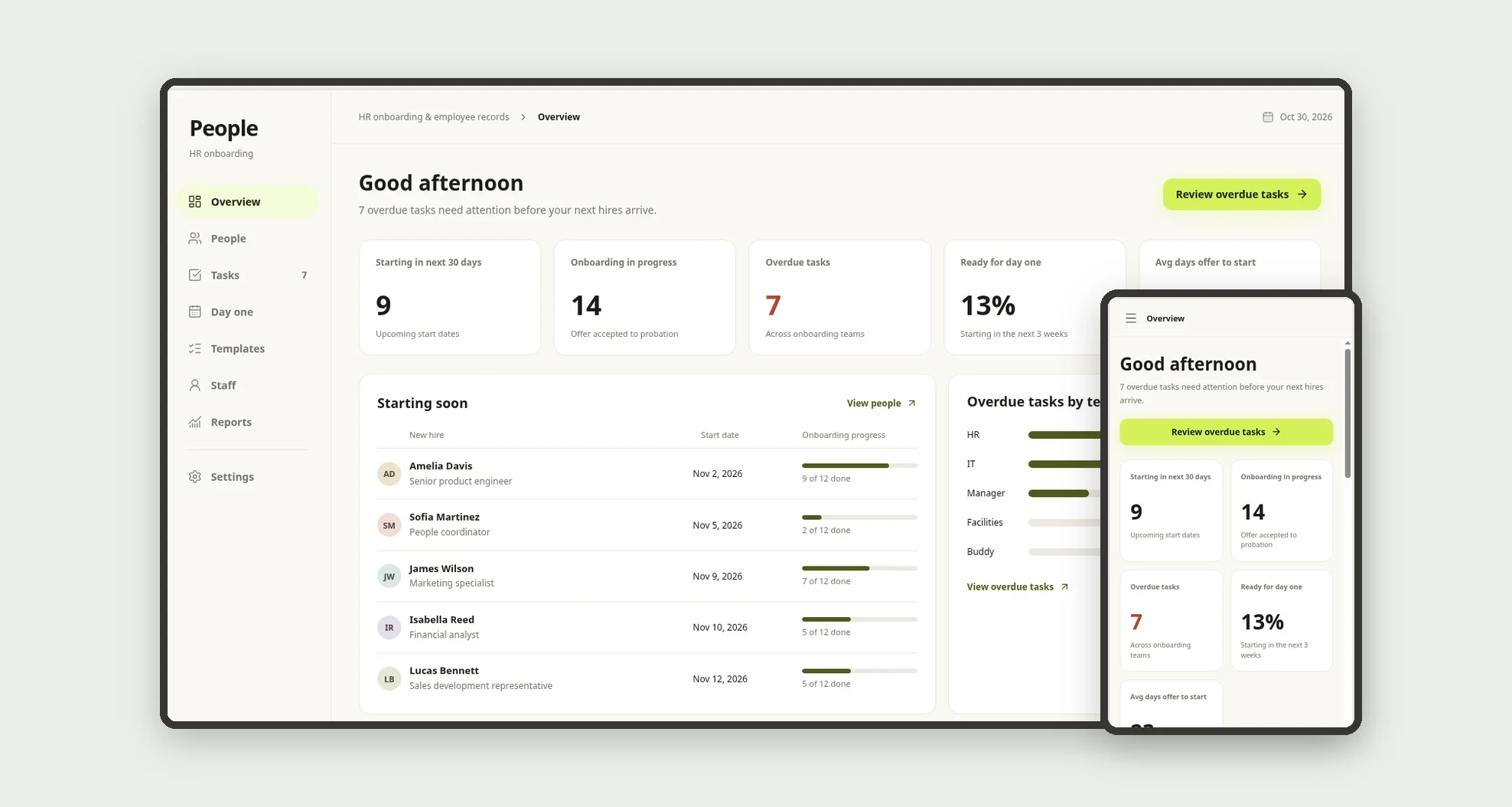
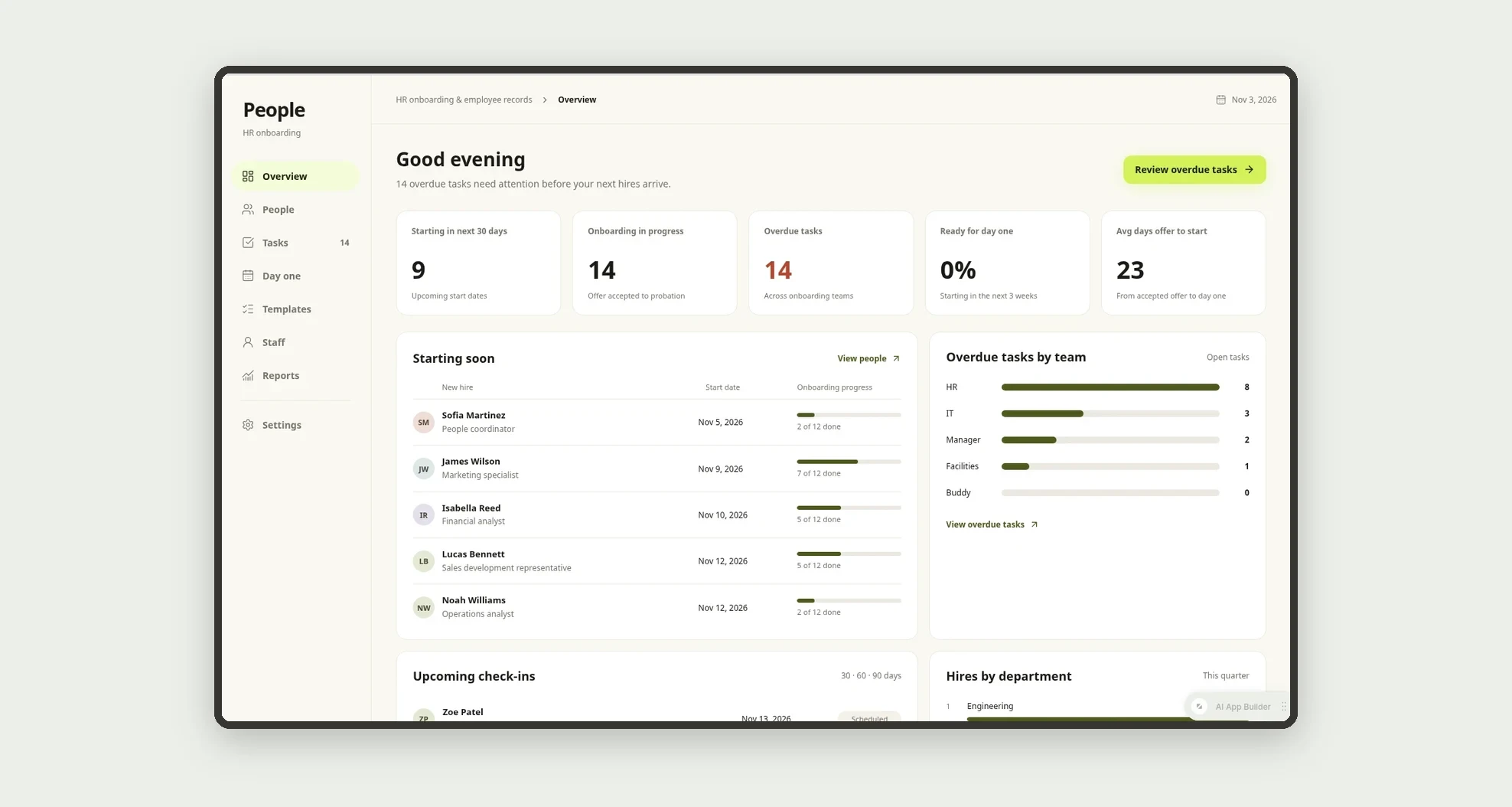
- See who starts soon, overdue tasks by team and upcoming check-ins on the overview
- Schedule 30, 60 and 90-day check-ins with a manager rating
- Keep salary, tax ID and bank details visible only to HR
App features
Overview
See who starts soon, overdue tasks by team and upcoming check-ins on the overview.
People
The People screen covers this part of the operation.
Tasks
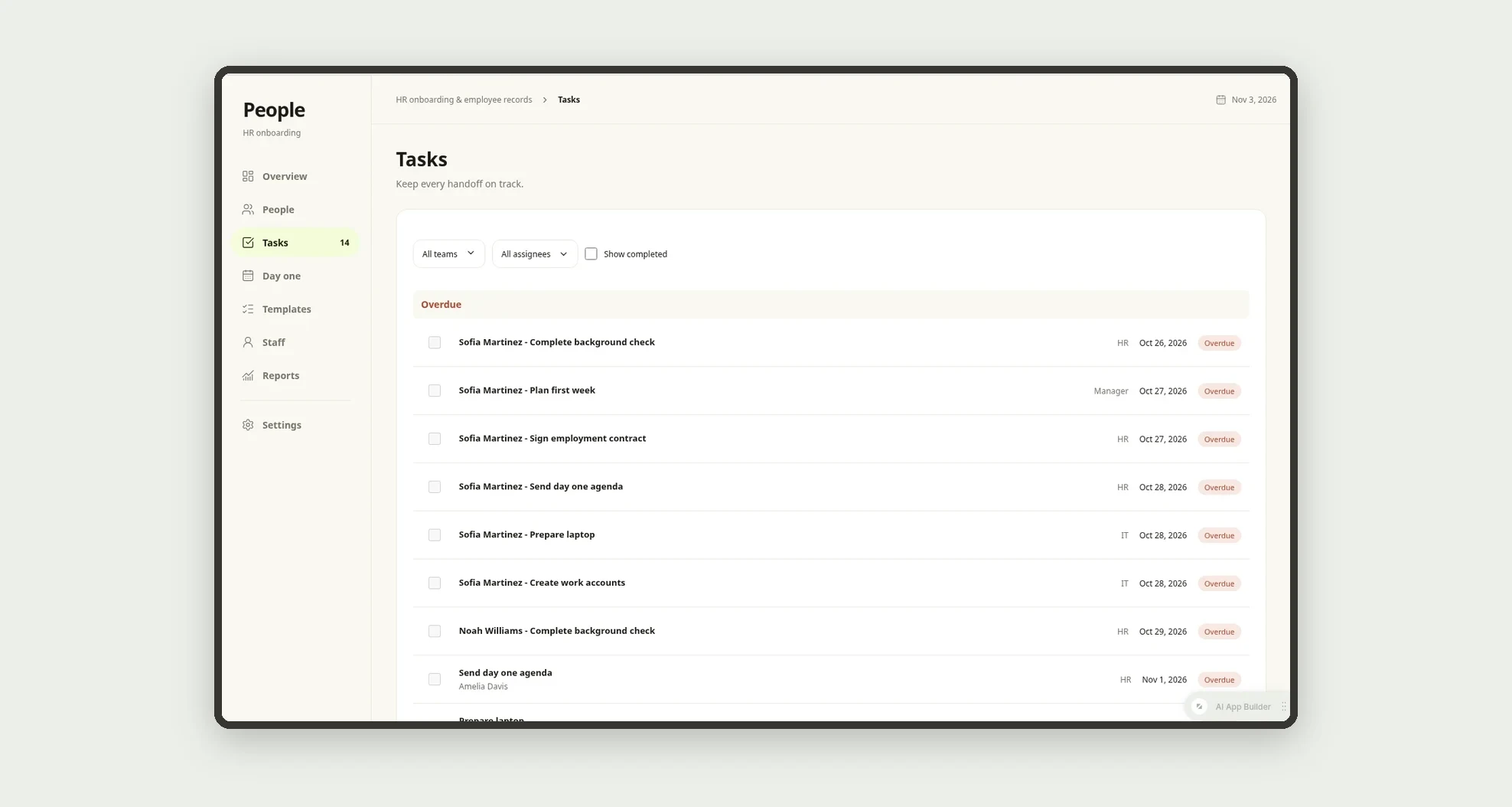
See who starts soon, overdue tasks by team and upcoming check-ins on the overview.
Documents
The new hire sends documents and HR approves them.
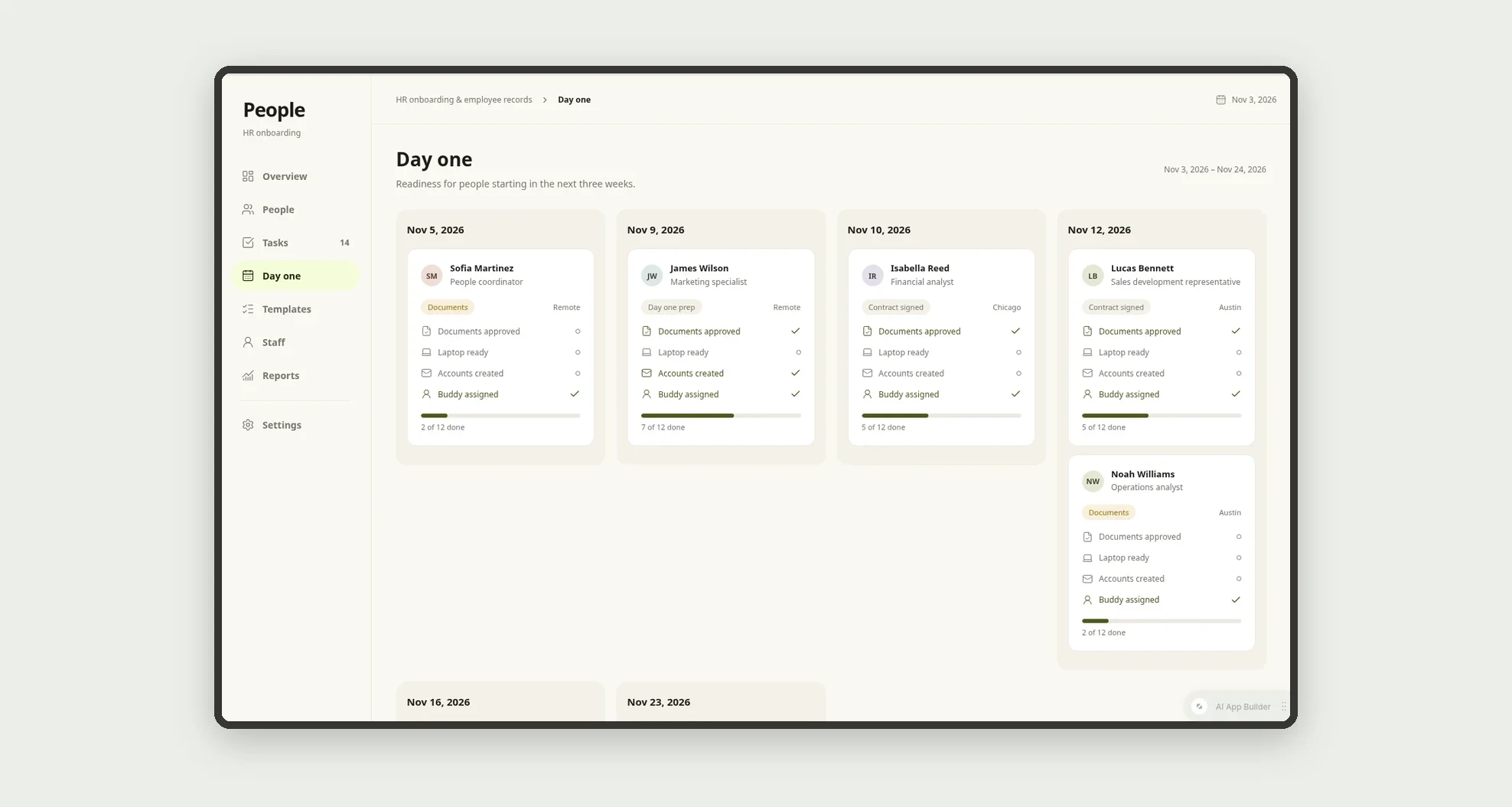
Day one
Prepare equipment and accounts before day one.
Templates
Create onboarding tasks from templates by job family, with due dates relative to the start date.
Staff
The Staff screen covers this part of the operation.
Reports
The Reports screen covers this part of the operation.
Settings
The Settings screen covers this part of the operation.
How it works
An accepted offer creates the employee and applies the onboarding template. The new hire sends documents and HR approves them.
IT and facilities prepare accounts, laptop and badge before the start date. On day one the person moves to probation, with check-ins at 30, 60 and 90 days.
After the 90-day check-in, onboarding is done.
How to set up this template
- 1Click Use App
Create your Jestor account and install HR Onboarding & Employee Records. It works on desktop and mobile.
- 2An accepted offer creates the employee and applies the
An accepted offer creates the employee and applies the onboarding template.
- 3The new hire sends documents and HR approves them.
The new hire sends documents and HR approves them.
- 4IT and facilities prepare accounts
IT and facilities prepare accounts, laptop and badge before the start date.
Integrations and customization
Works on desktop and mobile, and tasks can be checked off on a phone. Templates, document types and the check-in schedule can be changed without code, and you can add fields, tables and automations to fit your hiring process.
- Adjust fields, categories, statuses and rules without code.
- Add screens, reports and automations as the operation needs them.
And that's just the start: you can edit any part of this template and go much further just by asking Jestor's AI. Describe what you need, like a new field, automation, report or integration, and the AI builds or adjusts it for you, no code required.
Frequently asked questions
Who can see salary and bank details?
Only the HR role. These fields are hidden from managers, IT and facilities.
Can I have different onboarding plans per role?
Yes. Each job family has its own template with tasks, owners and due dates.
What happens when a task is late?
It shows as overdue and is counted in the overdue tasks by team.
Does it come with sample data?
Yes. It includes fictitious employees in every stage, with tasks, documents and check-ins.