What it is
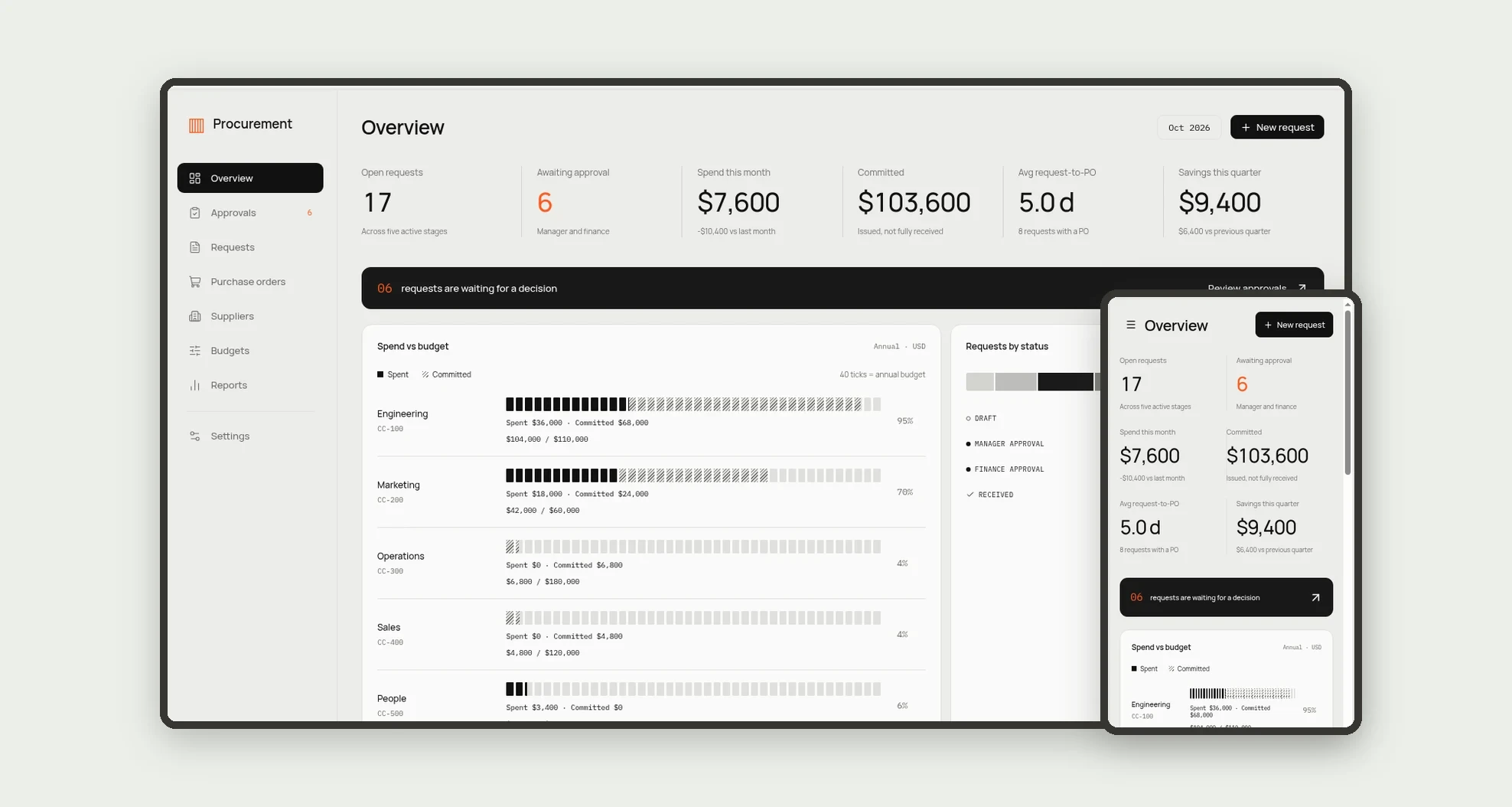
A purchase requests and procurement app for mid-size companies that want anyone to request, every budget checked and nothing bought without approval. Requests move from manager approval to quotes, finance approval, purchase order and receiving, with a clear trail of who decided and when.
Who it's for
- Mid-size companies (100 to 500 people) that buy through several departments
- Procurement and buying teams that collect quotes and issue purchase orders
- Finance teams that control budgets by cost center
- Managers who approve requests for their own area
- Companies replacing email and spreadsheet approvals
What you can do
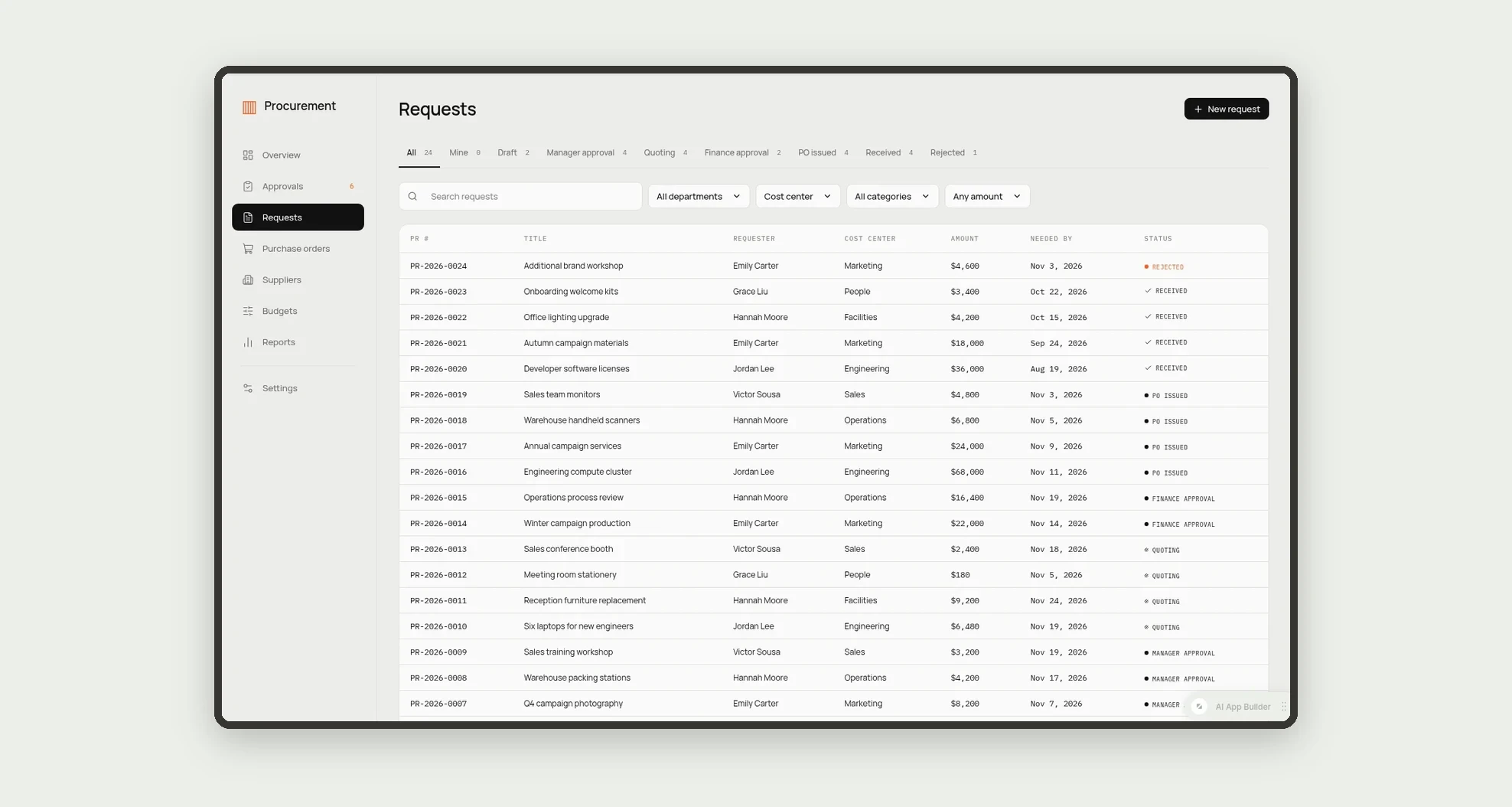
- Submit purchase requests with items, justification, urgency and needed-by date
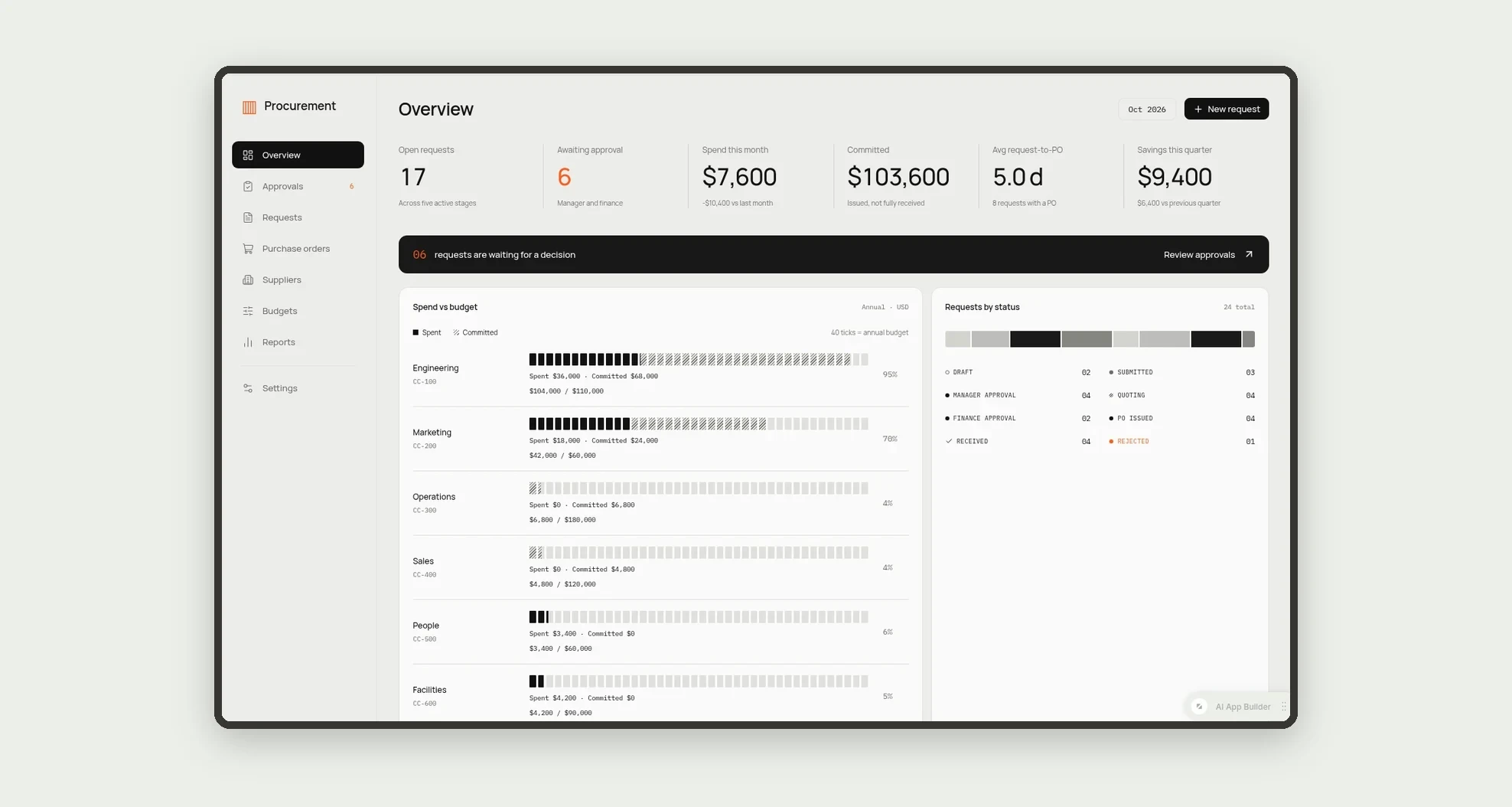
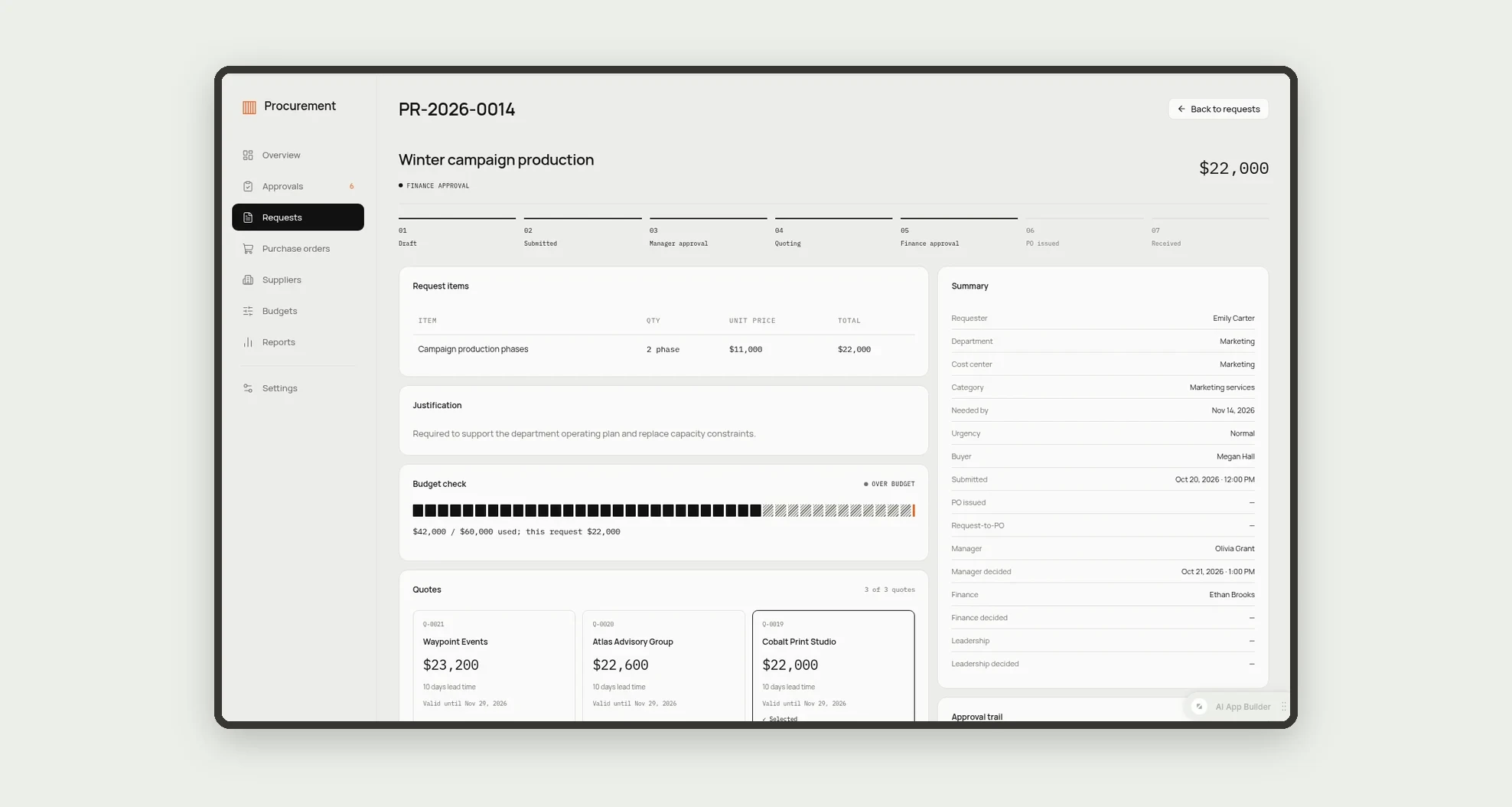
- Check every request against the cost center budget with a spend vs budget meter
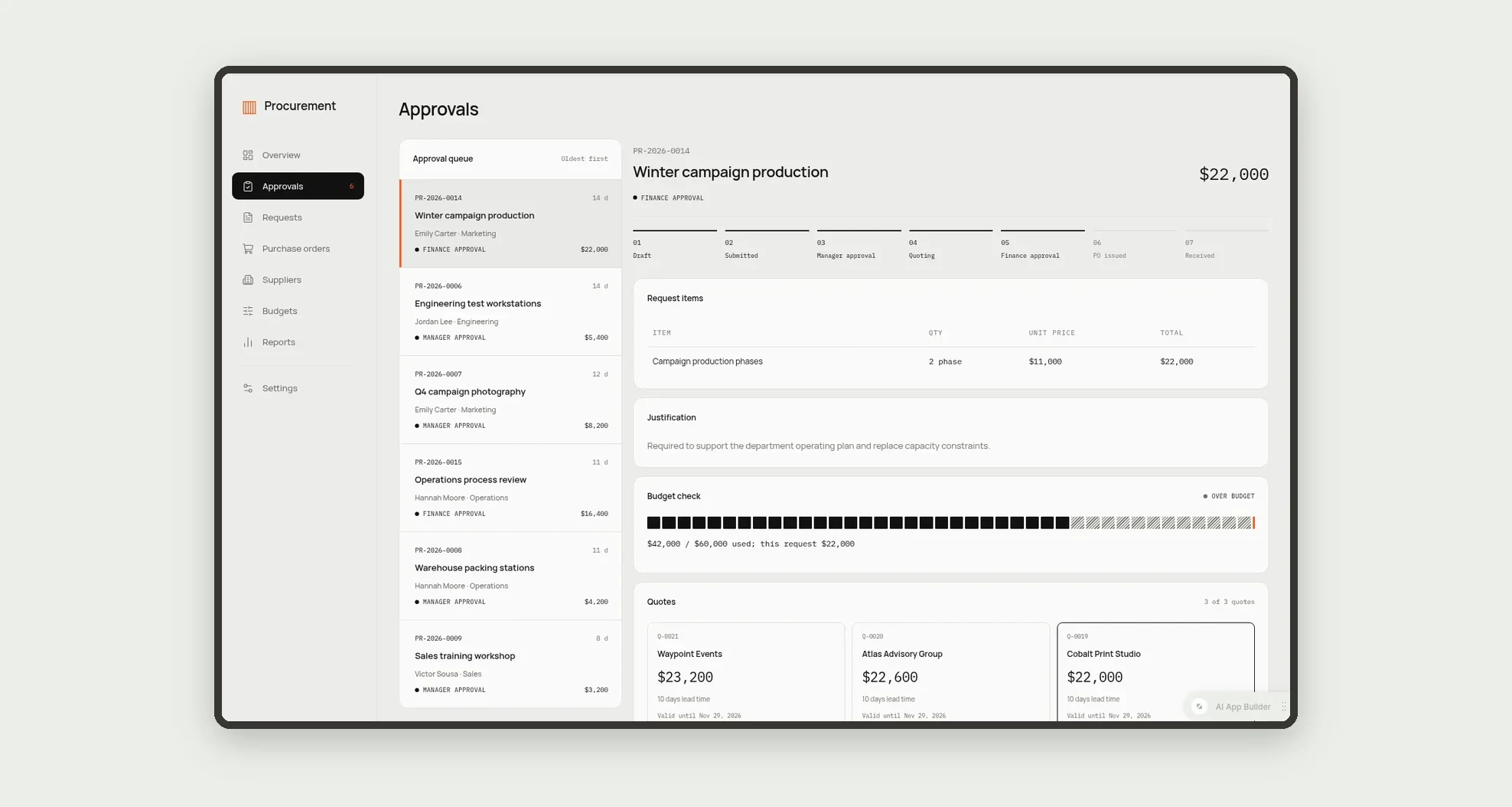
- Approve or reject in a two-pane approvals inbox, with a required reason for rejections
- Collect quotes and require 3 quotes above $5,000, with savings calculated from the selected quote
- Route to finance above $10,000 or when over budget, and to leadership above $50,000
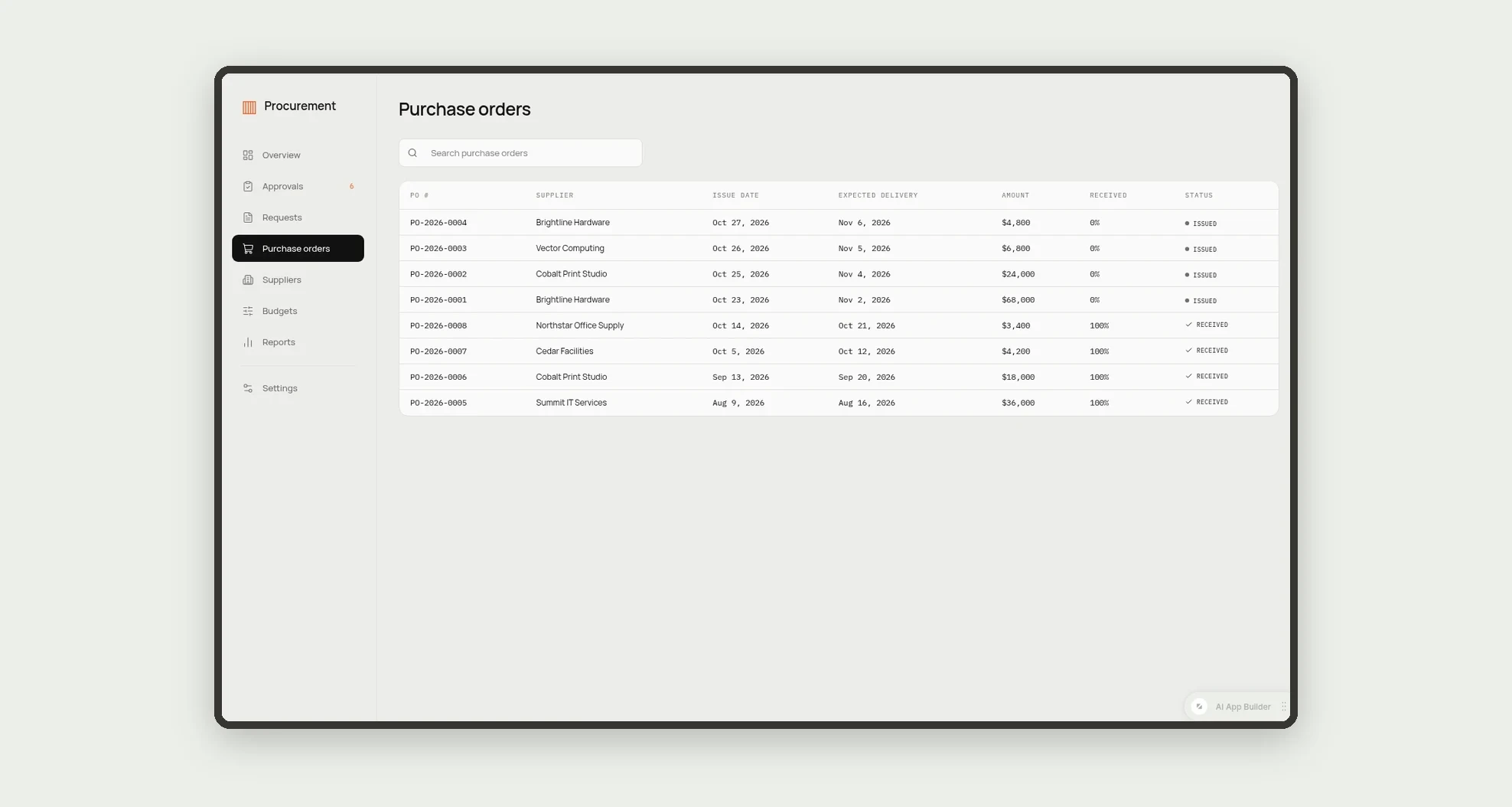
- Issue purchase orders from the selected quote and receive in full or in part
- Manage suppliers with status, terms, on-time rate and onboarding
- Track spend by category, request-to-PO time and savings in reports
App features
Overview
The Overview screen covers this part of the operation.
Approvals
Approve or reject in a two-pane approvals inbox, with a required reason for rejections.
Requests
Submit purchase requests with items, justification, urgency and needed-by date.
Purchase orders
Issue purchase orders from the selected quote and receive in full or in part.
Suppliers
Manage suppliers with status, terms, on-time rate and onboarding.
Budgets
The Budgets screen covers this part of the operation.
Reports
Track spend by category, request-to-PO time and savings in reports.
Settings
The Settings screen covers this part of the operation.
How it works
A requester creates a request with items and an estimate; submitting runs the budget check. The cost center manager approves or rejects with a reason.
The buyer adds quotes and selects one; the app shows what is missing, such as "2 of 3 quotes". Finance and leadership approve when the amount or budget rule requires it.
The purchase order is issued, goods are received and the cost center moves the amount from committed to spent.
How to set up this template
- 1Click Use App
Create your Jestor account and install Purchase Requests & Procurement. It works on desktop and mobile.
- 2A requester creates a request with items and an estimate;
A requester creates a request with items and an estimate; submitting runs the budget check.
- 3The cost center manager approves or rejects with a reason.
The cost center manager approves or rejects with a reason.
- 4The buyer adds quotes and selects one; the app shows what is
The buyer adds quotes and selects one; the app shows what is missing, such as "2 of 3 quotes".
Integrations and customization
Works on desktop and mobile, with approve and reject pinned at the bottom on a phone. Approval thresholds, categories and cost centers can be changed without code, and you can add fields, tables and automations to fit your buying process. Purchase orders have an optional ERP ID and sync status field for teams that connect an ERP.
- Adjust fields, categories, statuses and rules without code.
- Add screens, reports and automations as the operation needs them.
And that's just the start: you can edit any part of this template and go much further just by asking Jestor's AI. Describe what you need, like a new field, automation, report or integration, and the AI builds or adjusts it for you, no code required.
Frequently asked questions
When are 3 quotes required?
Requests with an estimated amount above $5,000 need three quotes before one can be selected.
Who approves each request?
The cost center manager approves first. Finance approves above $10,000 or when the request is over budget, and leadership also approves above $50,000.
Can a purchase order go to a supplier that is not approved?
No. A supplier that is not approved opens an onboarding record and blocks the purchase order until it is approved.
Does it come with sample data?
Yes. It includes fictitious requests, quotes, suppliers, cost centers and purchase orders so you can explore every screen first.