What it is
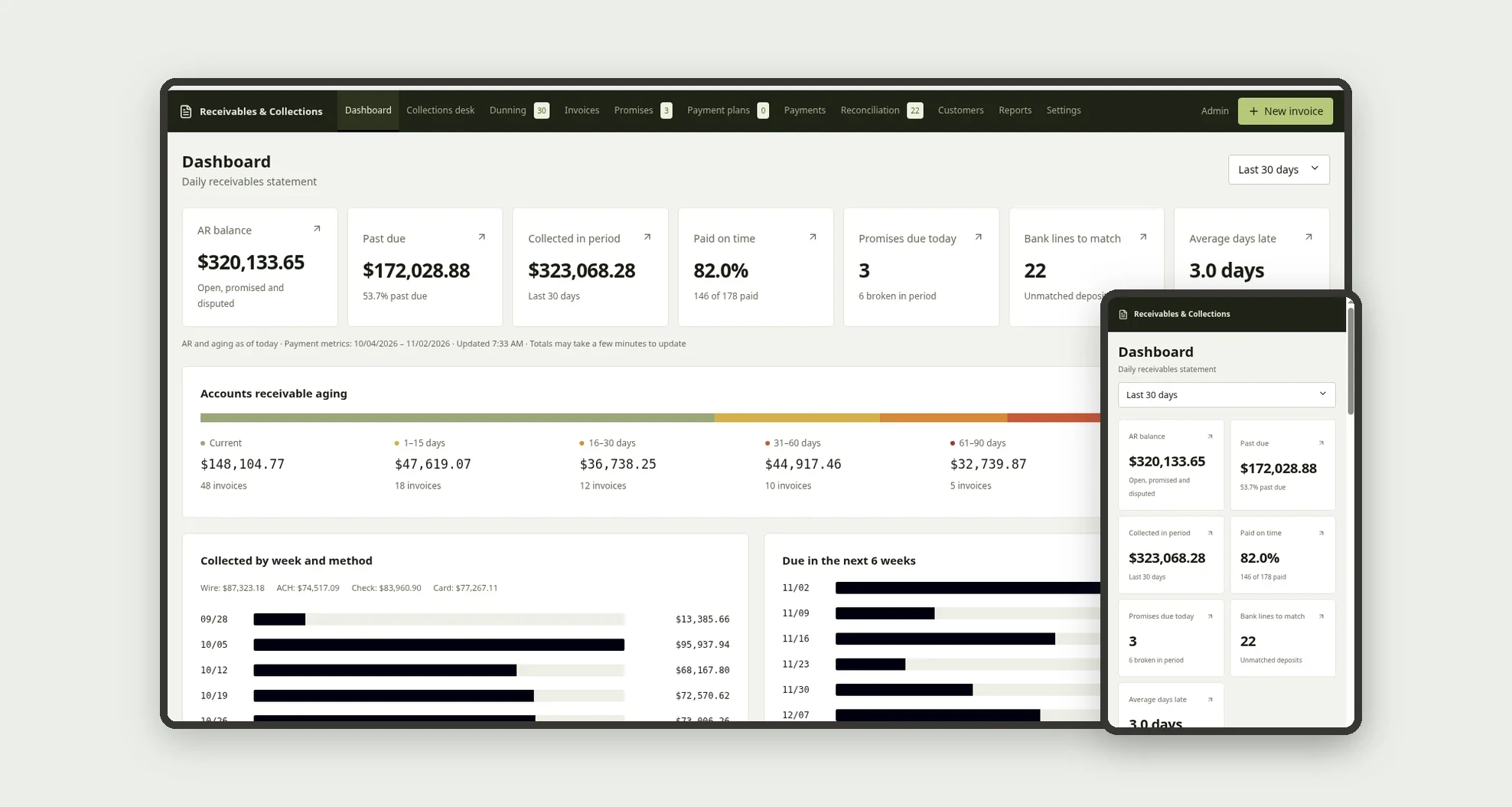
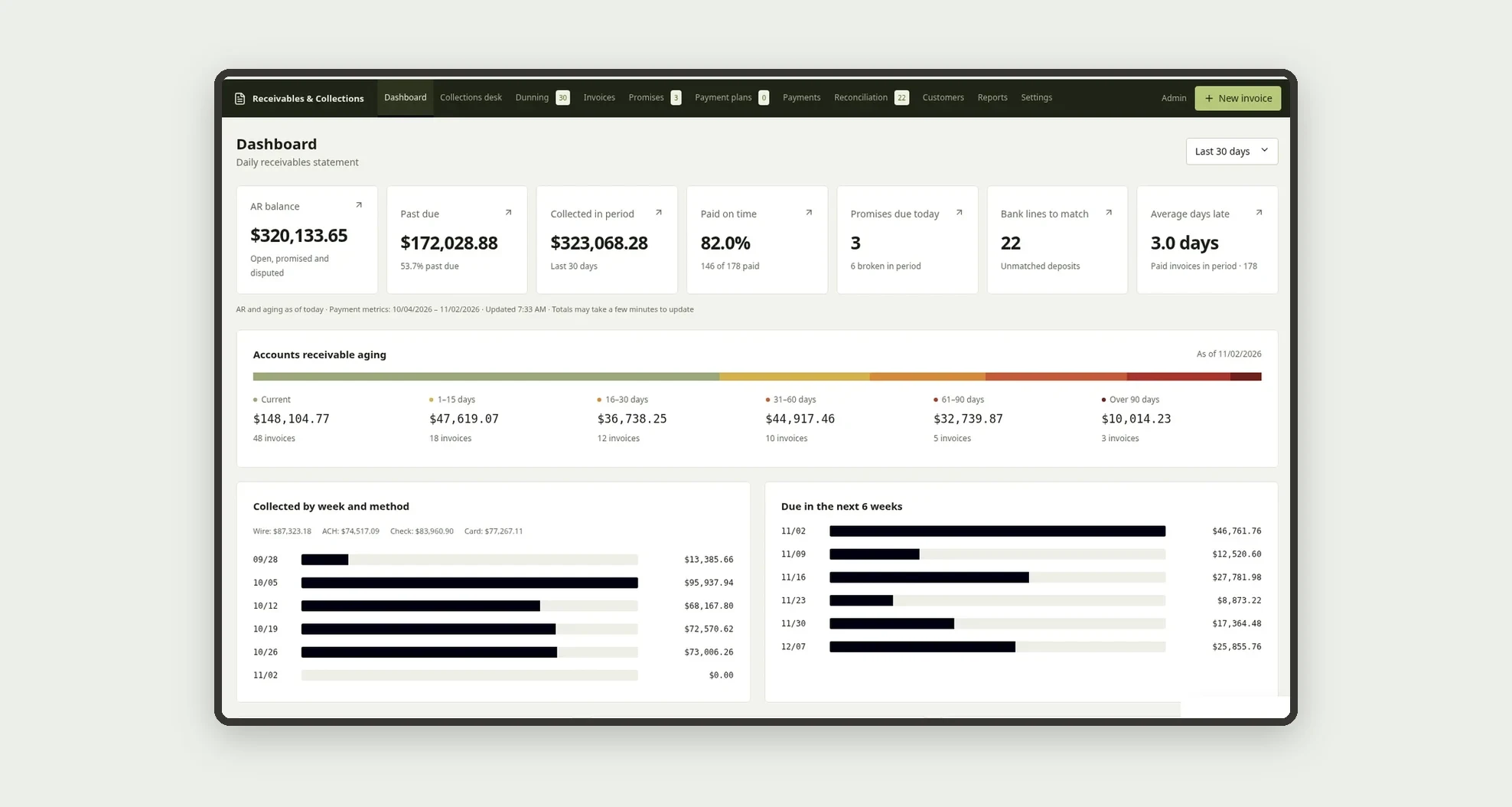
A template for distributors and businesses that sell on terms to know every day who owes what, for how long and what to do now: AR aging, a dunning cadence with today's queue, a collections desk per customer, promises to pay, payment plans with installments, fresh ACH and card payment links, payments and bank reconciliation. The Dashboard shows at a glance the AR balance, what is past due and how much was paid on time.
Who it's for
- Distributors and service companies that invoice on Net 30 terms and get paid by ACH, check, card or wire
- Businesses with recurring monthly billing, such as equipment or dispenser service plans
- Collections teams that need a daily queue of customers to contact
- Finance teams that record payments and reconcile bank lines
- Management that approves payment plans and discounts above the limit
What you can do
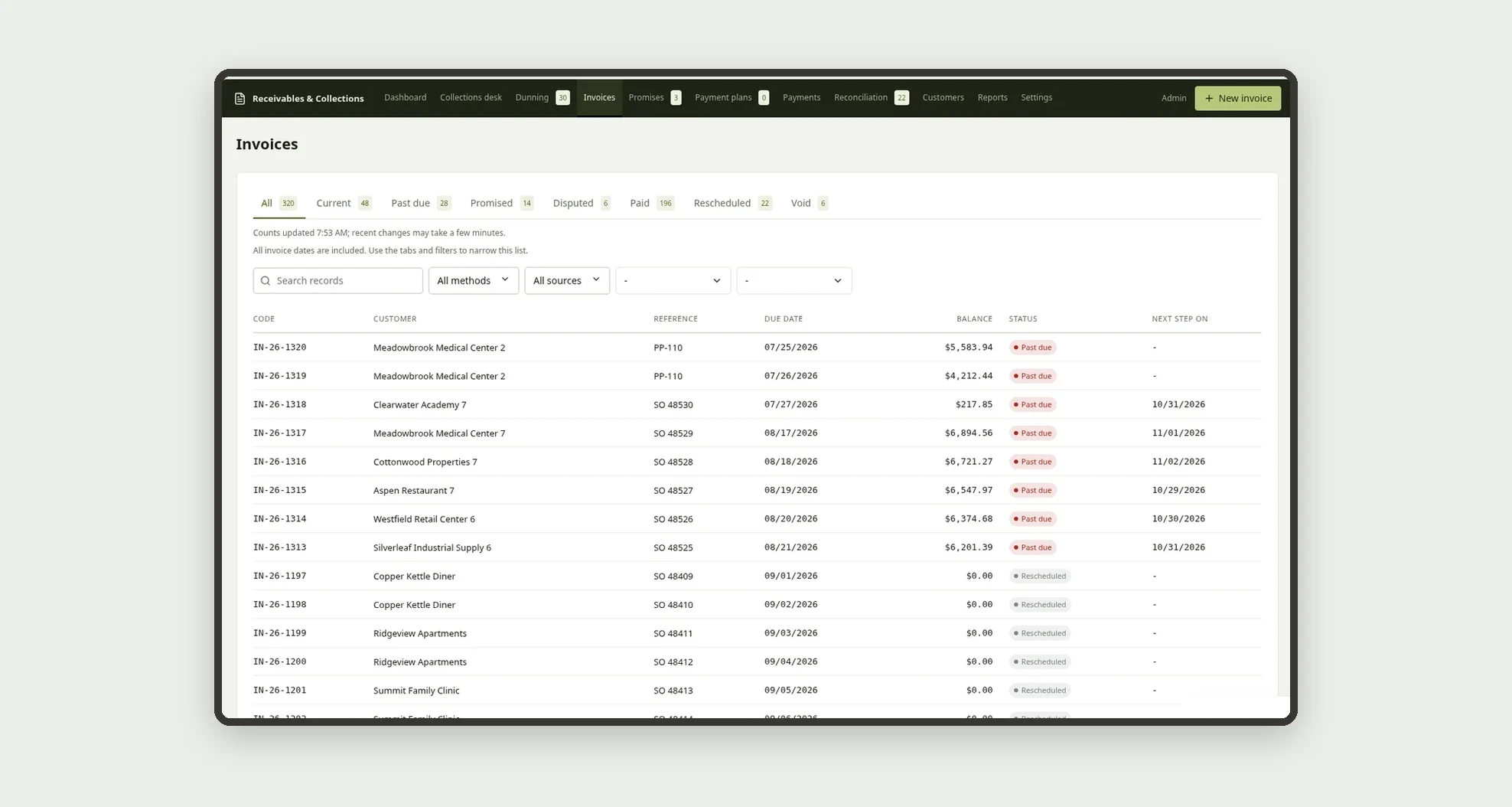
- Create invoices per customer with installments from the default terms, and bill each month from active service plans
- See the AR split into aging buckets (Current, 1-15, 16-30, 31-60, 61-90 and Over 90 days), with the balance and invoice count in each
- Work today's dunning queue, with the standard message filled in to copy or open in email or text
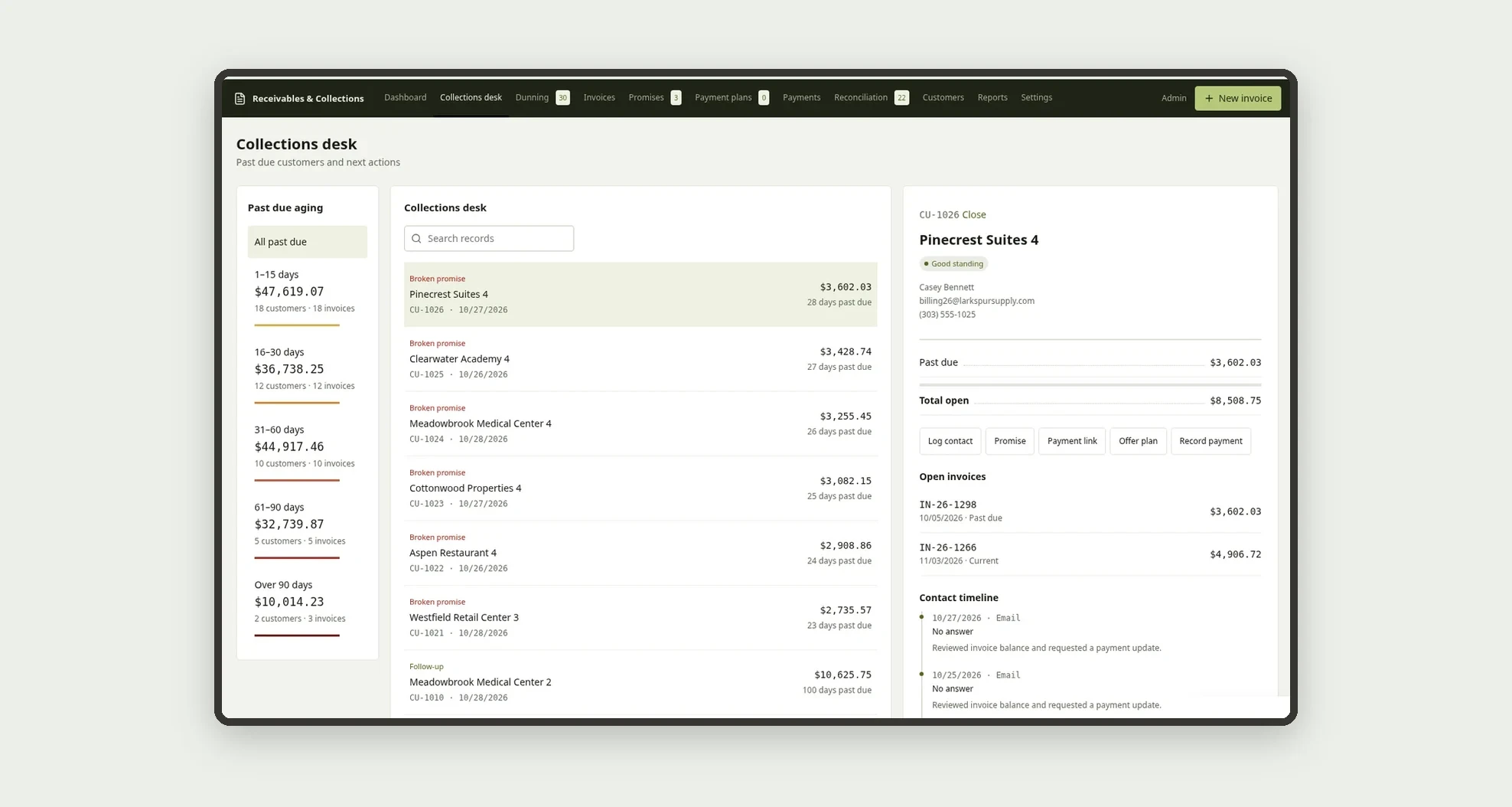
- Collect customer by customer on the Collections desk, with a statement-style customer card and the actions Log contact, Promise, Payment link, Offer plan and Record payment
- Log promises to pay and follow the ones due today and the broken ones
- Reschedule past due invoices into a payment plan with a down payment and installments, with Management approval above the limit
- Send a fresh ACH or card payment link with the amount updated for late fees
- Record full or partial payments and match each bank line to its payment on the same bank account
App features
Dashboard
The Dashboard screen covers this part of the operation.
Collections desk
Collect customer by customer on the Collections desk, with a statement-style customer card and the actions Log contact, Promise, Payment link, Offer plan and Record payment.
Dunning
Work today's dunning queue, with the standard message filled in to copy or open in email or text.
Invoices
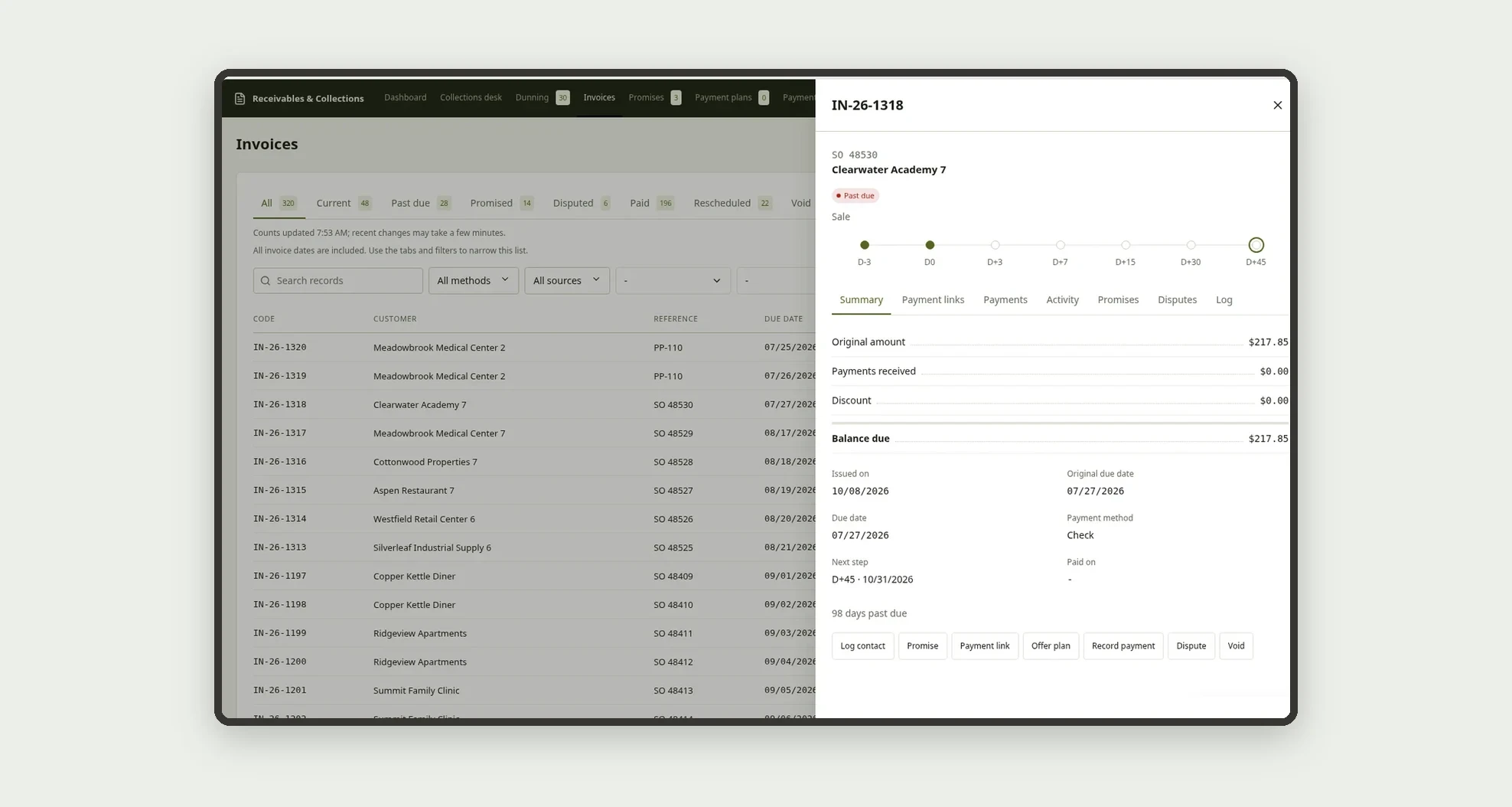
Create invoices per customer with installments from the default terms, and bill each month from active service plans.
Promises
Log promises to pay and follow the ones due today and the broken ones.
Payment plans
The Payment plans screen covers this part of the operation.
Payments
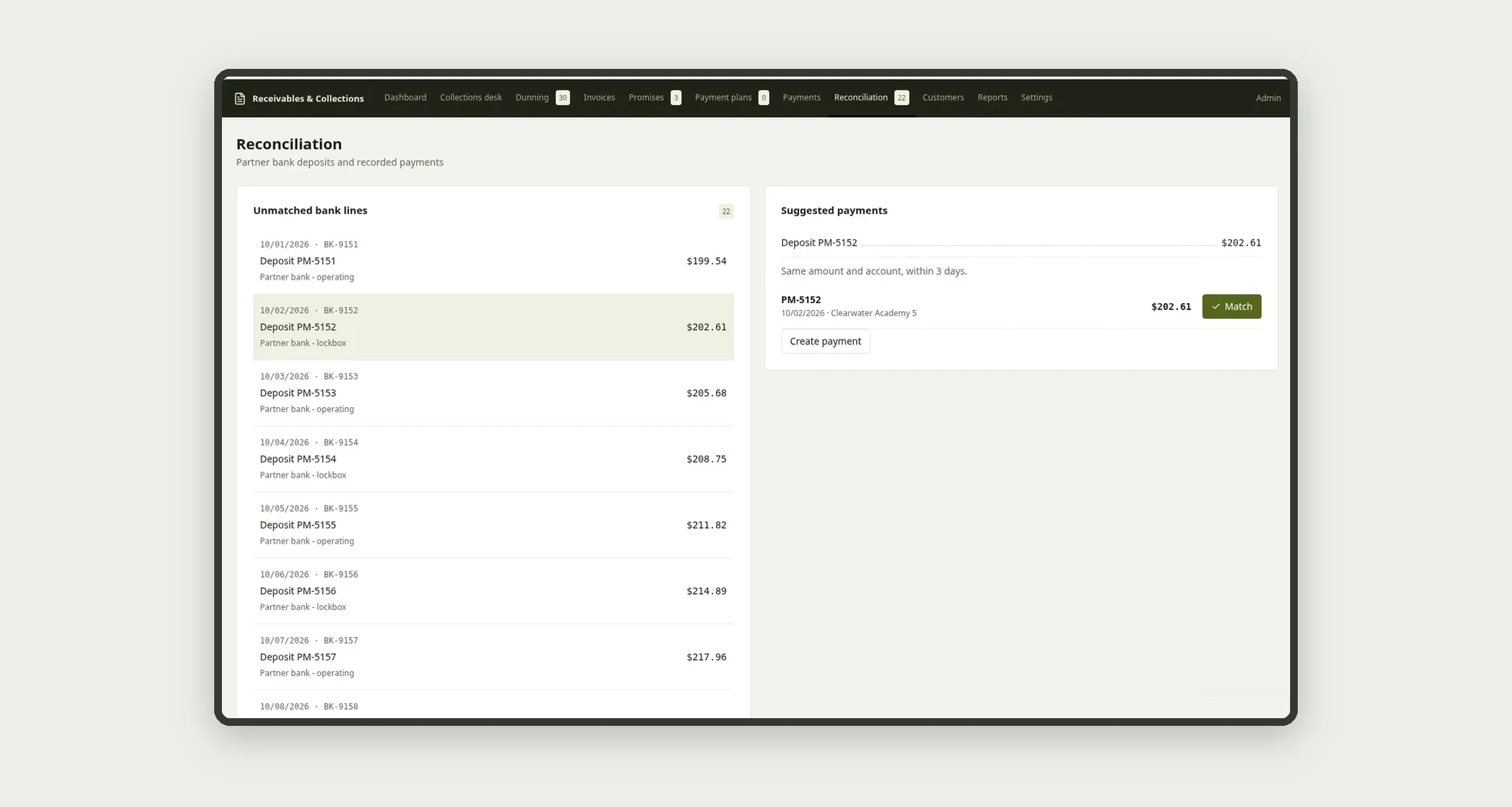
Record full or partial payments and match each bank line to its payment on the same bank account.
Reconciliation
In Settings, fill in the company (late fee, max discount, payment plan approval limit, reconciliation tolerance), the team, the dunning cadence, the bank accounts and the service plans.
Customers
The Customers screen covers this part of the operation.
Reports
The Reports screen covers this part of the operation.
Settings
In Settings, fill in the company (late fee, max discount, payment plan approval limit, reconciliation tolerance), the team, the dunning cadence, the bank accounts and the service plans.
How it works
In Settings, fill in the company (late fee, max discount, payment plan approval limit, reconciliation tolerance), the team, the dunning cadence, the bank accounts and the service plans. Each invoice starts with a balance equal to its amount and the next cadence step scheduled from its due date.
Dunning lists the steps due today; sending one saves the activity, the last contact and the next step. A promise, a dispute or a payment plan pauses the cadence. A promise not kept by its date turns Broken and the invoice goes back to Open.
When a payment is recorded, the app updates the balance; at zero the invoice is Paid and the app saves whether it was paid on time and the days late. In Reconciliation, each unmatched bank line suggests payments from the same bank account with the same amount and a date within the tolerance; one click matches them. Every change is saved in the Activity log.
How to set up this template
- 1Click Use App
Create your Jestor account and install Receivables & Collections. It works on desktop and mobile.
- 2In Settings
In Settings, fill in the company (late fee, max discount, payment plan approval limit, reconciliation tolerance), the team, the dunning cadence, the bank accounts and the service plans.
- 3Each invoice starts with a balance equal to its amount and the
Each invoice starts with a balance equal to its amount and the next cadence step scheduled from its due date.
- 4Dunning lists the steps due today; sending one saves the
Dunning lists the steps due today; sending one saves the activity, the last contact and the next step. A promise, a dispute or a payment plan pauses the cadence.
Integrations and customization
The template works on desktop and mobile and can be adapted without code.
- Works on desktop and mobile; on mobile the Collections desk becomes a customer list and the customer card opens full screen
- Follows the Jestor light or dark mode automatically
- Admin, Collections, Finance, Sales and Management roles control what each person sees
- The dunning cadence, standard messages, late fee, max discount, approval limit, bank accounts and fields can be adjusted without code
And that's just the start: you can edit any part of this template and go much further just by asking Jestor's AI. Describe what you need, like a new field, automation, report or integration, and the AI builds or adjusts it for you, no code required.
Frequently asked questions
How does the dunning cadence work?
Each cadence has steps by day relative to the due date (from D-3 to D+45), with a channel, an action and a standard message. The app schedules each invoice's next step and shows the ones due today in Dunning.
How does the app calculate paid on time?
It counts the invoices paid in the period that were paid by their original due date and divides by all paid invoices, showing the percentage and "x of y paid".
When does a payment plan need approval?
When the plan amount is above the approval limit or the discount is above the max set in Company settings. In those cases Management approves or rejects it before it becomes active.
How does bank reconciliation work?
Each unmatched bank line gets suggestions of unreconciled payments from the same bank account, with the same amount and a date within the tolerance. With no match, you can create the payment from the line, and bank fees can be ignored.
Can I use the template with the sample data?
Yes. The data is fictitious and lets you explore the app before adding your own customers and invoices.