What it is
A work orders and service tickets app for field service teams that want every ticket to have an owner and an SLA, and every visit to have a check-in, a checklist, photos and a customer signature. Triage incoming tickets, dispatch technicians on a weekly board and follow each job from request to signed visit report in one place.
Who it's for
- Field service companies that maintain HVAC, electrical, plumbing, refrigeration and generator equipment
- Dispatchers who triage tickets and schedule technicians
- Technicians who run their day from a phone
- Service managers who track SLA compliance, utilization and customer satisfaction
- Teams moving service requests off email, phone notes and spreadsheets
What you can do
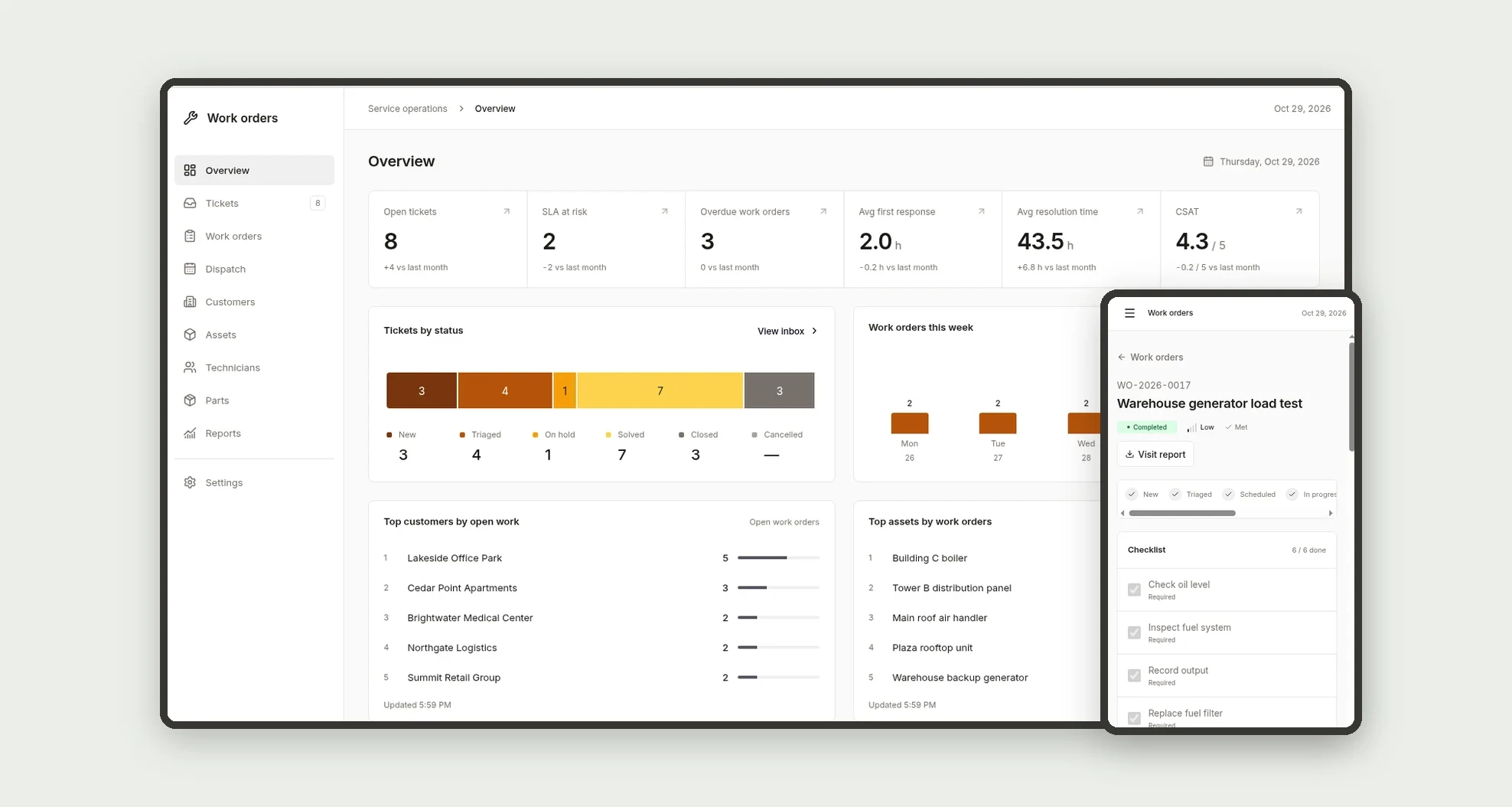
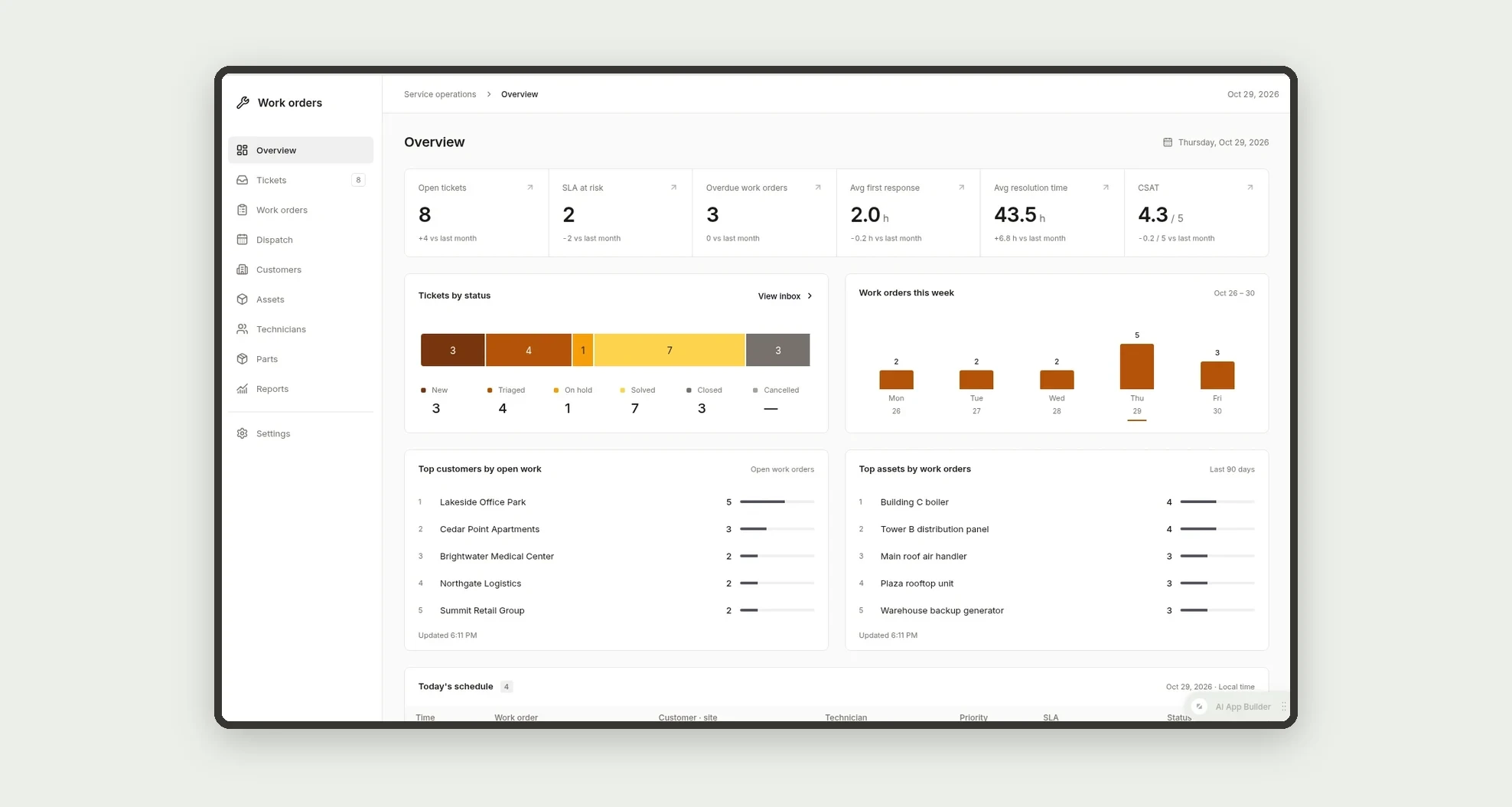
- See open tickets, SLA at risk, overdue work orders, average first response, average resolution time and CSAT on the Overview, with tickets by status, work orders this week, top 5 customers, top 5 assets and today's schedule
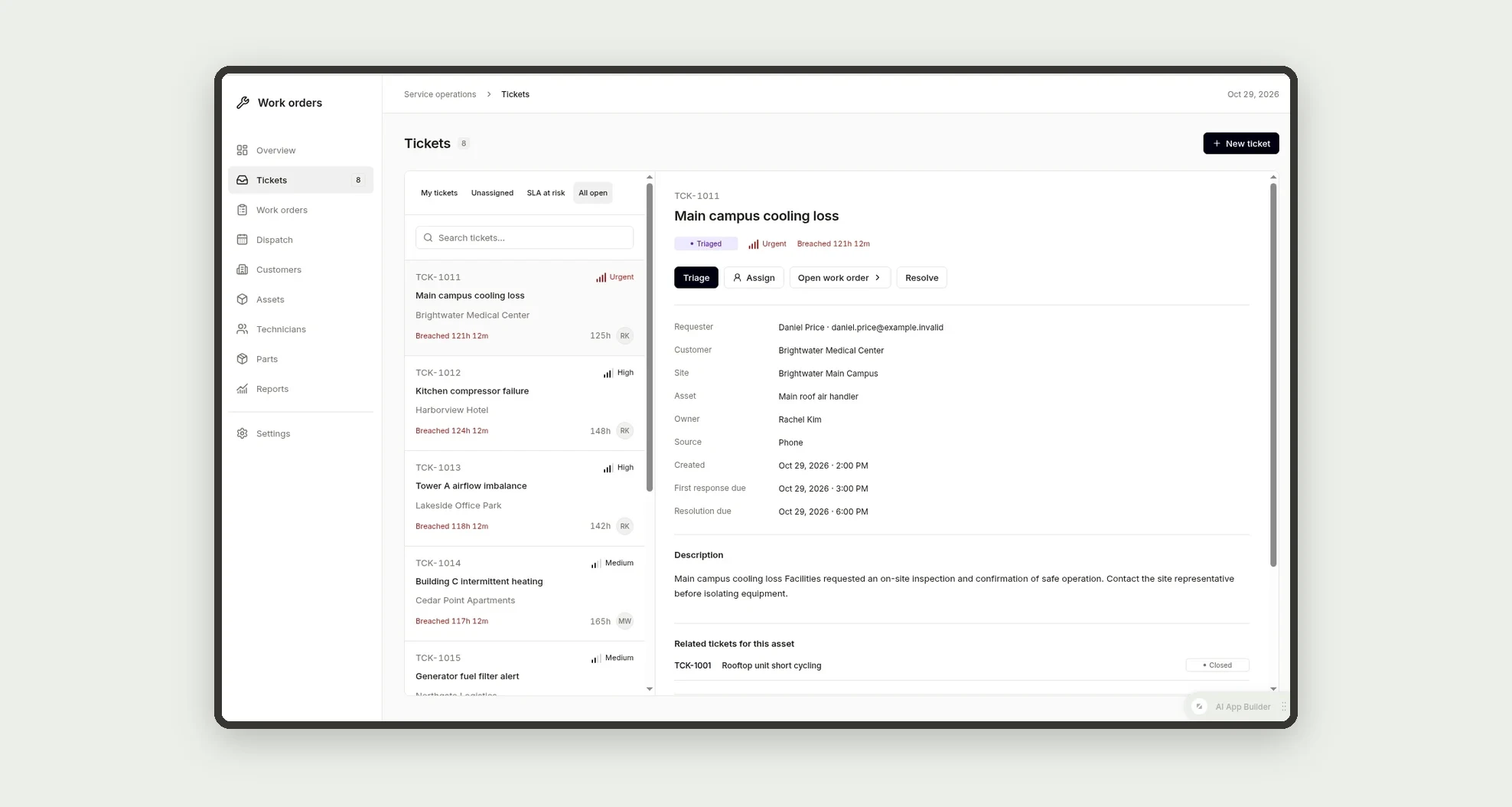
- Triage tickets in a two-pane inbox with saved views (My tickets, Unassigned, SLA at risk, All open) and create a work order from a ticket in one click
- Track SLA timers per ticket ("2h 14m left", At risk, Breached, Met) based on SLA policies by priority
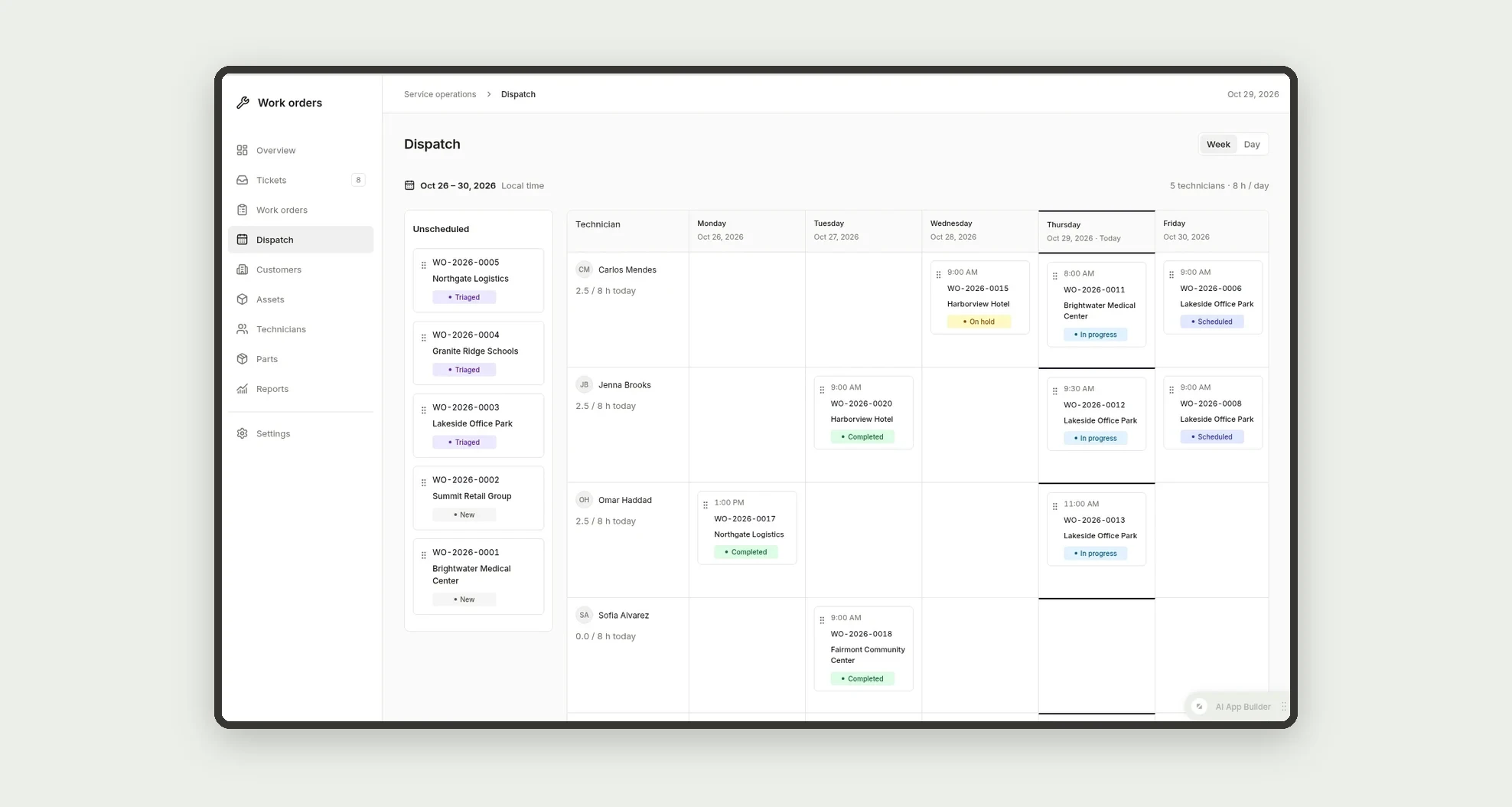
- Schedule and reassign work on a dispatch board by technician and day, with an Unscheduled tray and daily capacity
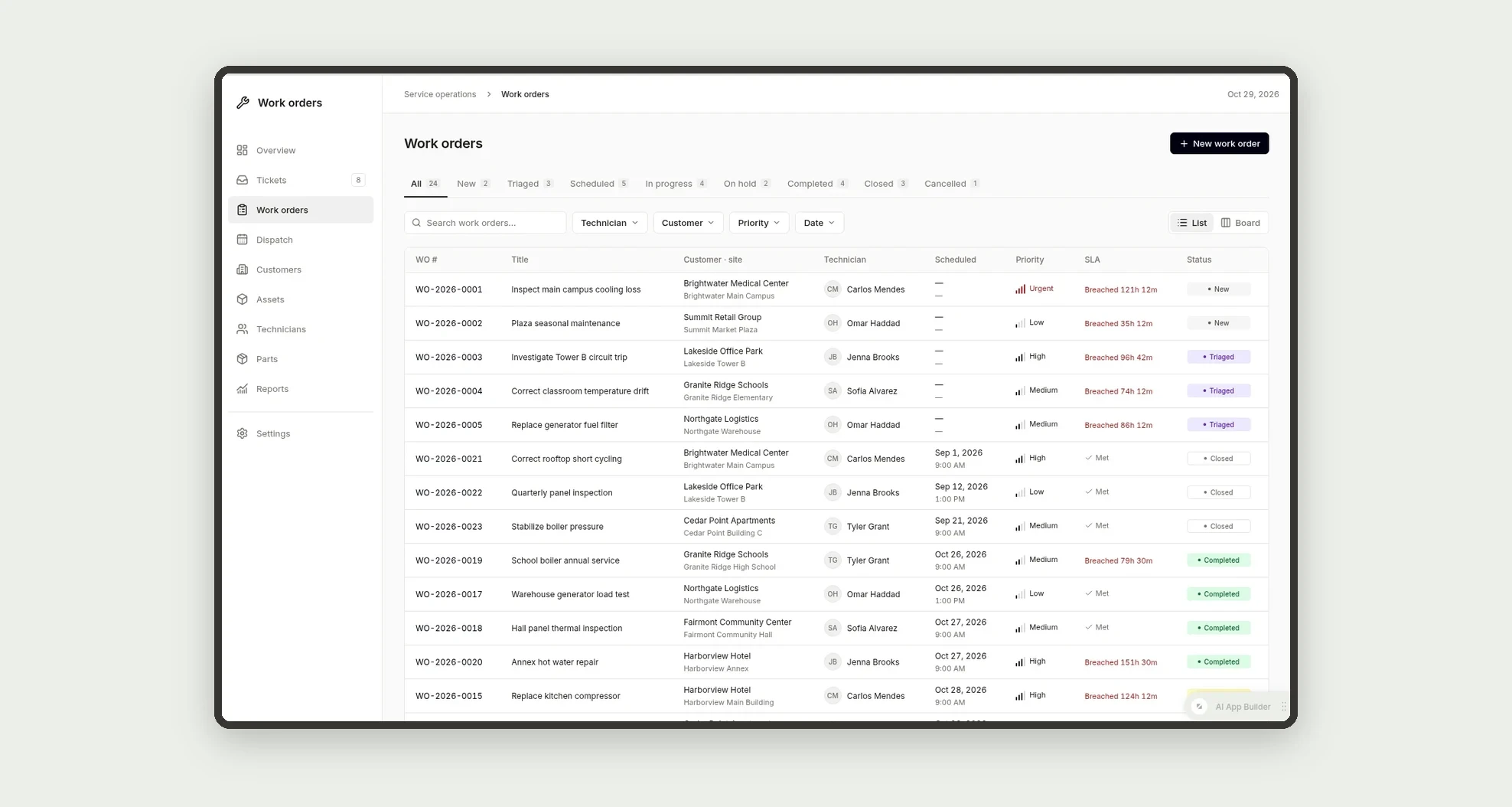
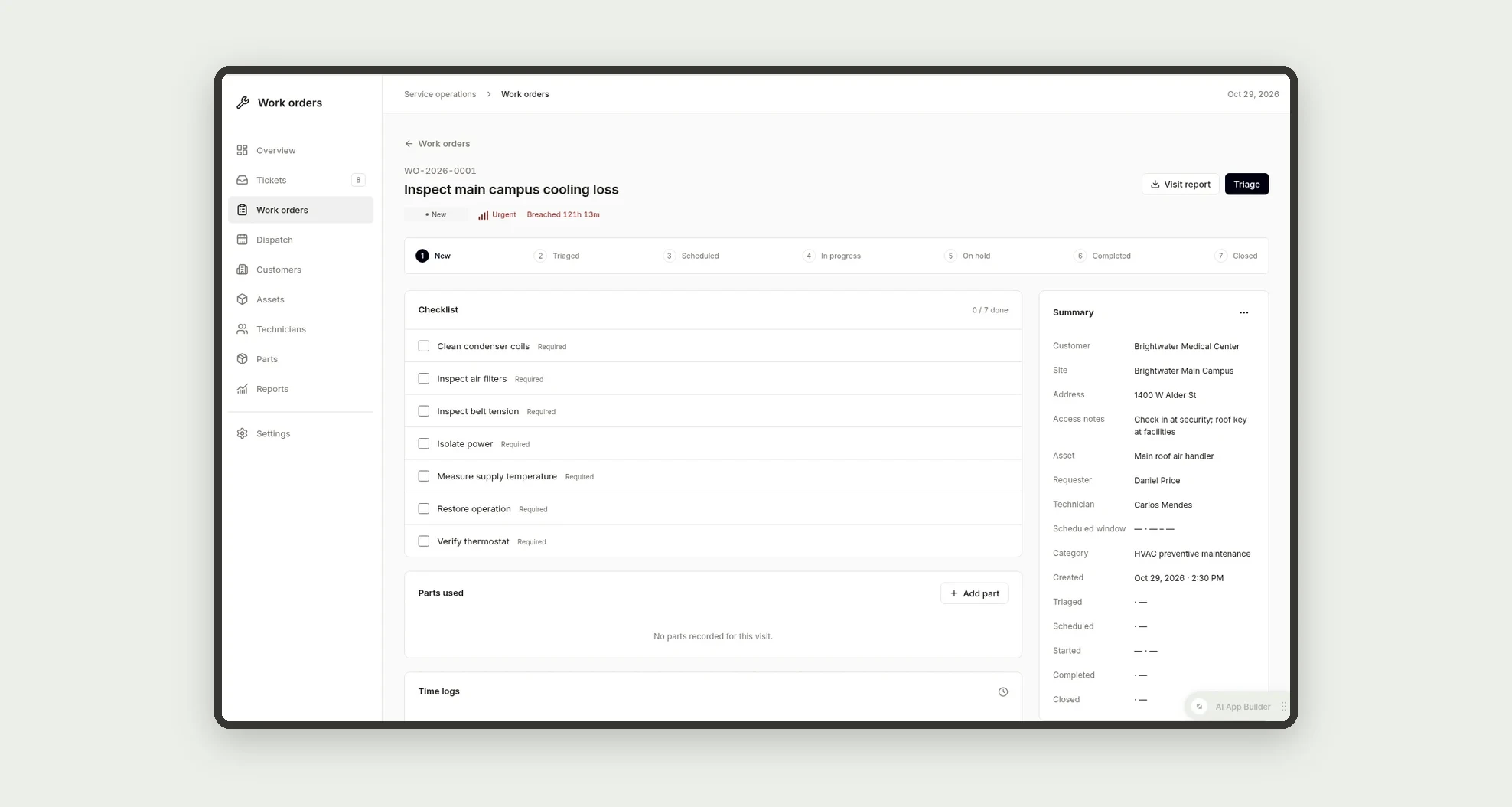
- Manage work orders in a list with status tabs or in a kanban board, with a stepper, checklist, parts used, time logs, photos and customer signature on each work order
- Block sign-off until required checklist items, at least one photo and the customer signature are in place
- Keep customer, site and asset profiles with full service history, plus parts inventory with low stock alerts
- Read reports on SLA compliance by priority, work orders by category, technician utilization, first-time fix rate and CSAT trend
App features
Overview
See open tickets, SLA at risk, overdue work orders, average first response, average resolution time and CSAT on the Overview, with tickets by status, work orders this week, top 5 customers, top 5 assets and today's schedule.
Tickets
Triage tickets in a two-pane inbox with saved views (My tickets, Unassigned, SLA at risk, All open) and create a work order from a ticket in one click.
Work orders
The Work orders screen covers this part of the operation.
Dispatch
The work order is scheduled with a technician and a time window on the dispatch board.
Customers
See open tickets, SLA at risk, overdue work orders, average first response, average resolution time and CSAT on the Overview, with tickets by status, work orders this week, top 5 customers, top 5 assets and today's schedule.
Assets
See open tickets, SLA at risk, overdue work orders, average first response, average resolution time and CSAT on the Overview, with tickets by status, work orders this week, top 5 customers, top 5 assets and today's schedule.
Technicians
The Technicians screen covers this part of the operation.
Parts
Keep customer, site and asset profiles with full service history, plus parts inventory with low stock alerts.
Reports
Read reports on SLA compliance by priority, work orders by category, technician utilization, first-time fix rate and CSAT trend.
Settings
The Settings screen covers this part of the operation.
How it works
A ticket arrives by email, phone, portal or from a technician, and its SLA due dates are set from the policy for its priority. The dispatcher triages it (category, priority, assignee) and creates a work order, which applies the checklist template of the category.
The work order is scheduled with a technician and a time window on the dispatch board. The technician checks in on the phone, works through the checklist, adds photos and parts, and captures the customer signature.
The work order is marked done, the ticket is solved, the customer gets a visit report and a CSAT survey, and the manager closes it.
How to set up this template
- 1Click Use App
Create your Jestor account and install Work Orders & Service Tickets. It works on desktop and mobile.
- 2A ticket arrives by email
A ticket arrives by email, phone, portal or from a technician, and its SLA due dates are set from the policy for its priority.
- 3The dispatcher triages it (category
The dispatcher triages it (category, priority, assignee) and creates a work order, which applies the checklist template of the category.
- 4The work order is scheduled with a technician and a time window
The work order is scheduled with a technician and a time window on the dispatch board.
Integrations and customization
Works on desktop and mobile, with a technician view built for the phone: My day list, large checklist tap targets, running timer and a full-width signature pad. Dark mode follows the user's Jestor theme automatically, and the Theme preference sits in Settings. SLA policies, categories, checklist templates and working hours can be changed without code, and you can add fields, tables and automations to fit your process. With Jestor automations you can send SLA alerts at 80% of the target, email visit reports and CSAT surveys, and reduce parts stock as parts are used.
- Adjust fields, categories, statuses and rules without code.
- Add screens, reports and automations as the operation needs them.
And that's just the start: you can edit any part of this template and go much further just by asking Jestor's AI. Describe what you need, like a new field, automation, report or integration, and the AI builds or adjusts it for you, no code required.
Frequently asked questions
How are SLA due dates set?
Each priority has an SLA policy with a first response target and a resolution target. A ticket gets its due dates from the policy that matches its priority, and turns At risk when less than 25% of the time remains.
Can a technician close a job without the customer signature?
No. A work order can only be marked done when all required checklist items are checked, at least one photo is attached and the signature is captured. The app shows one line with what is missing.
Do technicians see prices and costs?
No. Technicians see only their own work orders, without prices or costs.
Does the app work on a phone?
Yes. Technicians get a My day list and a one-column work order screen with Check in, Start and the main actions pinned at the bottom.
Does it come with sample data?
Yes. The template includes 8 fictitious customers, 12 sites and assets, 5 technicians, 18 tickets, 24 work orders across every status and 20 parts so you can explore every view before adding your own data.